TechSee Instant Mirroring
- 44.00
- 3.8
- Installs
- 100.00K
- Price
- Free

Screenshots
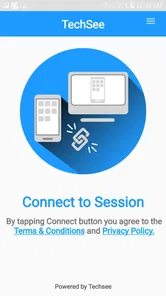
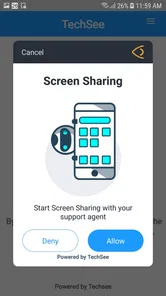
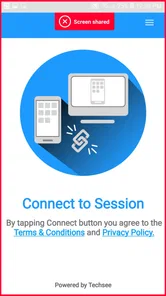
Analysis by Reviewed
When a phone problem is difficult to explain, a normal voice call can quickly become a guessing game. I may know that an app is not working, but describing the exact button, screen, or error to another person is often harder than the problem itself. TechSee Instant Mirroring is built around that gap: it is a communication app that lets an Android screen be mirrored so support can be more visual and direct.
I see it as a focused tool rather than a general-purpose messaging app. Its value appears when someone needs guidance on a device and words are not enough. Instead of asking a relative, agent, or helper to imagine what is happening, the user can show the relevant screen and receive more precise assistance. That simple change can save time, especially for people who are uncomfortable explaining technical issues.
The app is developed by Techsee Google Developer Account and is available free of charge for everyone. It has reached over one hundred thousand installs and holds a 3.8 average from around one hundred sixty ratings, which suggests a reasonably established but still fairly specialized Android audience. The current release is version 1.4.3, and it supports Android 7.1 or later.
What I would consider before installing it
I would use this section to think through whether visual troubleshooting is worth adding another app to my phone. The key question is not simply how often I need help, but whether the people who help me can respond while I am sharing my screen. A little preparation can make that choice clearer before a device problem turns into a rushed call.
It is for visual support, not everyday communication
The first decision is whether I actually need screen sharing. If I only want to send messages, make calls, or exchange files, a regular communication app is likely to be more suitable. TechSee Instant Mirroring makes sense when the central problem is visual: setting up a device, locating a control, following instructions, or showing exactly what appears on the screen.
That distinction matters because screen mirroring changes the conversation. A helper can respond to what is visible instead of relying on a description such as “the menu is somewhere near the top.” For remote troubleshooting, this can reduce repeated questions and make instructions easier to follow. It is particularly useful when the person needing help is not familiar with technical vocabulary.
Compatibility should be checked before a real support call
The Android requirement is approachable because the app works from Android 7.1 onward, but compatibility is still something I would check before depending on it during an urgent situation. Android devices differ in how they handle screen capture, permissions, overlays, battery restrictions, and privacy prompts. Even when an app supports the operating system, the experience can vary between manufacturers.
More From Our News Desk

 Gmail
GmailGmail in a Busy Inbox: Who Benefits Most?
From first account to crowded workday, Gmail earns its place through dependable search and flexible sorting—but its best fit depends on how much inbox maintenance you can tolerate.

 Prime Video
Switching to Prime Video: What Changes in Your Viewing Routine
Prime Video can make a compelling second home for streaming, but switching means learning a different catalog, rental layer, and route from browsing to playback.

 Universal TV Remote Control
Universal TV Remote Control Works Best as a Reliable Backup
A phone remote earns its place through quick setup and reliable habits. Here is how to get more from Universal TV Remote Control—and where its limits show.

 Weather - By Xiaomi
Weather by Xiaomi Review: Clear at a Glance, Less Clear Up Close
Xiaomi’s weather app makes everyday forecasts quick to scan, but its calm surface can leave useful details and recovery paths harder to find than they should be.

 X
XX Under Pressure: Can It Recover When Posting Goes Wrong?
A resilience-focused review of X, examining setup, mistaken posts, interruptions, weak connections, and the gaps that matter when recovery needs to be dependable.

 Clash of Clans
Clash of Clans Is Won Between the Battles
Its raids are quick; its community is a long-term project of coordination, teaching, rivalry, and shared responsibility—with all the friction that entails.
Latest News



My practical advice is to install it before the problem occurs, open it once, and become familiar with the first permission or sharing prompt. A short test with a trusted person is more useful than discovering the setup process while someone is waiting for help. This is one of the less obvious trade-offs: the app can simplify support later, but only if the initial setup is not postponed until the moment of stress.
Privacy needs to be part of the decision
Mirroring a screen can reveal more than the user intends. Notifications, account names, messages, photos, verification codes, and other private details may appear while sharing is active. I would close unrelated apps, silence sensitive notifications, and remove confidential information from view before starting a session.
This is not a criticism unique to TechSee Instant Mirroring; it is inherent in showing a live mobile screen. Still, the visual convenience can make people forget how much information is exposed. I would treat a mirroring session as something deliberate, not as a feature to leave running in the background. If the support request involves banking, identity documents, or private conversations, I would be especially cautious and show only what is necessary.
Who benefits most from this approach?
I think the strongest audience includes family members who regularly help with Android phones, customer-support situations where a device problem is hard to reproduce, and users who need step-by-step guidance. It can also help someone who understands a problem visually but struggles to describe it accurately over the phone.
The app is less compelling for people who already solve technical issues independently, prefer text instructions, or need a full remote-control environment rather than visual assistance. It is also not the first tool I would choose for long meetings, collaborative presentations, or casual social calls. Its purpose is narrower, and that focus is either its main advantage or its main limitation depending on the situation.
How the experience fits real support work
Here I would look at the habits that make a live support session useful, beyond the mirroring itself. Agreeing on who will guide the steps, keeping the person with the phone in charge of each action, and deciding when to stop sharing can make the interaction calmer and more focused. Those small choices matter most when the user is unfamiliar with technical instructions.
Where TechSee Instant Mirroring wins
The clearest strength is the reduction of ambiguity. Imagine a parent calling because a phone setting has changed and an important option seems to have disappeared. Over a voice call, I might give directions based on the device model, only to discover that the menus look different. With mirroring, I can react to the screen in front of me and guide the person from the exact point where they are stuck.
That workflow is more useful than simply sending a help article. Written instructions assume that the reader can identify the correct screen and interpret every step. A live visual connection lets the helper adjust immediately when the user takes a wrong turn. It also makes it easier to spot a small detail, such as a disabled control or an unexpected pop-up, that would never appear in a verbal description.
Another advantage is that the person receiving help can remain in control of the phone. In a visual-support scenario, the helper can explain what to tap while the owner performs the action. For users who are cautious about remote access, this distinction may feel more comfortable than handing control of the device to someone else. It encourages learning as well as solving the immediate issue.
I also like the way this can improve the quality of a support conversation. Instead of spending the first few minutes identifying the problem through guesswork, both people can focus on the visible state of the device. That does not guarantee an instant solution, but it creates a much better starting point. The app’s value is therefore less about adding another communication channel and more about making an existing conversation concrete.
A useful workflow for family tech support
For a family member, I would use it in a simple sequence. First, I would ask the person to close unrelated apps and prepare the screen that needs attention. Next, I would start the visual session and ask them to move slowly, one action at a time. I would avoid giving several instructions together, because the mirrored screen is most helpful when the helper can observe each step.
After the issue is resolved, I would stop sharing immediately and confirm that the person knows what changed. That final explanation is important. Otherwise, the user may solve one problem but remain dependent on the same support call next time. TechSee Instant Mirroring works best when the helper uses the live view to teach, not merely to direct every tap.
Where the experience may feel limited
The focused nature of the app also creates friction. It does not replace a complete help-desk system, a knowledge base, or a conventional chat platform. If I need case history, organized tickets, searchable conversations, or a broad set of collaboration tools, I would look toward a dedicated support service instead.
Screen sharing can also be demanding for the person using it. They may need to understand a permission request, recognize when mirroring has begun, and remember to stop it afterward. Those steps are manageable, but they are not invisible. A user who is already anxious about a phone problem may need calm, patient guidance before the actual troubleshooting begins.
There is also a human limitation: seeing the screen does not automatically reveal the cause of a problem. A helper may still need to ask questions about what happened before the current screen appeared. Mirroring improves observation, but it does not turn every support conversation into a one-tap repair. I would choose it for clarity, not because it promises to eliminate diagnosis.
How it compares with the usual alternatives
The closest alternative is a normal voice call. Voice is faster to start and familiar to almost everyone, but it depends heavily on accurate descriptions. TechSee Instant Mirroring is stronger when the issue involves menus, icons, settings, or visual errors. If the matter is simply a question about an account or a general explanation, voice may be quicker and less intrusive.
Text messaging is useful when instructions can be written clearly or when the user needs a link, reminder, or short checklist. Its weakness is the delay between each step. The helper may send directions, wait for a reply, and then discover that the user is on a different screen. Mirroring reduces that back-and-forth, although it requires a live session and more attention from both people.
Video calling can sometimes provide a similar sense of presence, but pointing a camera at a phone display is often awkward. Reflections, small text, poor angles, and unstable framing can make the details difficult to read. Direct screen mirroring is better suited to showing software interfaces because the helper sees the device content rather than a camera image of the hardware.
Full remote-access tools may be preferable for trained technicians who need deeper control or a broader repair workflow. However, that greater power can also make them feel excessive for a family member who only needs instructions. I would select TechSee Instant Mirroring when the goal is shared visibility and user-led action, not unrestricted control.
Three practical habits that improve the result
- Prepare the screen first. Ask the user to open the relevant area before sharing begins. This shortens the session and reduces the chance of unrelated information appearing.
- Use one action at a time. A helper should describe a single tap or swipe, wait for the result, and then continue. This makes mistakes easier to identify and helps the user learn the path.
- End with a privacy check. Stop the session, close sensitive screens, and make sure no private notification or account detail remains visible to the helper.
These habits are not flashy features, but they make a meaningful difference. The app is most effective when the surrounding conversation is organized. Without that discipline, a live screen can become just as confusing as a rushed voice call.
What the version and audience tell me
Version 1.4.3 shows that the app has an identifiable current release rather than being presented as an abandoned experiment. At the same time, its rating profile and specialized purpose make me view it as a practical niche utility, not a universal communication replacement. I would install it because the use case is clear, not because I expect a large social ecosystem around it.
The Everyone content rating also makes it approachable for households where different age groups may need help with Android devices. That does not remove the need for privacy awareness, but it does fit the app’s role as a support bridge rather than an entertainment or social platform.
The cost of switching to it
Because the app is free, the financial barrier is low. The real cost is behavioral: the helper and the person needing help must agree to use a new tool instead of reaching immediately for a voice call. There is also a small learning cost in remembering how to begin a session and how to end it safely.
For occasional support, that cost may not be worthwhile if the problem can be solved with a short message. For repeated support, however, the investment can pay off quickly because both people become familiar with the process. A family that regularly troubleshoots one another’s Android phones may benefit more than someone who expects to use the app only once.
I would also consider the support relationship. If the helper is patient and comfortable interpreting a live screen, the app can be effective. If the helper is not available at the same time, a written guide or recorded explanation may be more practical. TechSee Instant Mirroring is built around synchronous assistance, so timing matters.
Who should skip it?
I would skip it if I mainly need ordinary messaging, group conversations, file exchange, or a platform for frequent video meetings. Those tasks call for broader communication tools. I would also avoid relying on it when the phone contains information that cannot safely be exposed, unless I can prepare a tightly controlled session.
Users who expect the helper to operate the device for them should also examine their expectations. The strongest fit is guided troubleshooting, where the phone owner sees the instructions and performs the actions. If the goal is advanced technical intervention, a more specialized remote-support product may be the better category.
My recommendation
After looking at the app as a decision rather than simply a download, I find its purpose convincing. TechSee Instant Mirroring addresses a specific weakness in phone support: the difficulty of describing what is visible. For Android users who often help relatives, customers, or colleagues, that shared view can make conversations shorter, clearer, and less frustrating.
I would recommend installing it if visual troubleshooting is a recurring need and the people involved are willing to practice the setup once. I would not present it as a replacement for every communication app, nor would I use it casually when privacy is a concern. Its success depends on a suitable situation, a trusted helper, and careful handling of the screen.
My final view is straightforward: choose TechSee Instant Mirroring when seeing the problem is more valuable than merely hearing about it. It is free, accessible to a broad Android audience, and focused enough to be useful without pretending to be an all-purpose support platform. For the right household or support workflow, that narrow purpose is exactly what makes it worth keeping installed.
TechSee Instant Mirroring Frequently Asked Questions
Does TechSee Instant Mirroring work without a support invitation?
TechSee Instant Mirroring is intended for visual support sessions rather than independent video calls with anyone you choose. You will generally need a company or support representative to initiate or invite you to a session. If you have downloaded the app but do not have an invitation, contact the organization handling your issue and ask how it starts a TechSee session.
What should I prepare before starting a TechSee support session?
Before opening a session, make sure your phone has enough battery, a working camera, and a reliable internet connection. Move to a well-lit area and have the relevant device or problem within view so the representative can see it clearly. It is also useful to follow the support agent’s instructions and keep private information out of the camera’s view.
What is TechSee Instant Mirroring used for?
TechSee Instant Mirroring is a remote visual-support tool that lets a customer share a live view of a device, appliance, or technical problem with a support representative. Instead of explaining an issue only by phone, you can use your phone’s camera to show what is happening. The representative may then guide you through troubleshooting, identify visible problems, and provide more accurate assistance.
Do I need to create an account before using TechSee Instant Mirroring?
In most support situations, you do not use TechSee Instant Mirroring as a standalone social or messaging application. A company, technician, carrier, or customer-service agent normally sends you an invitation or session link. The exact sign-in process can vary depending on the organization using the platform, so you should follow the instructions provided by the support representative rather than assuming that a separate account is required.
What permissions does TechSee Instant Mirroring require?
The application generally needs access to your camera so the support agent can see the issue you are reporting. Depending on the session and device, it may also request microphone permission for two-way communication, along with network access to transmit video and audio. You can review or revoke these permissions in your device settings, but denying essential access may prevent the remote assistance session from working correctly.
Pros
- Works without requiring specialized hardware or cables.
- Guided setup helps less technical users start a support session.
- Can reduce troubleshooting time for common device issues.
- Useful for remote support teams handling mobile problems.
- Designed to share only the device view during assistance.
Cons
- Requires a stable internet connection for smooth mirroring.
- Performance may vary across Android and iOS devices.
- Some support features may depend on the service provider.
- Screen sharing can consume battery during longer sessions.
- Users should verify the support agent before sharing their screen.