PDF Reader
- 757.00
- 4.6
- Installs
- 0.00
- Price
- Free
Screenshots
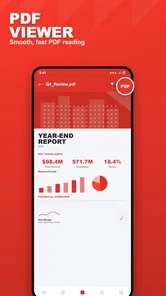
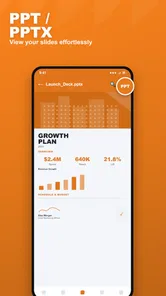
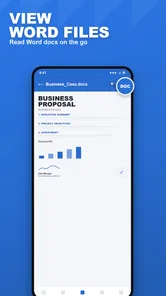
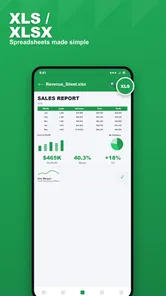
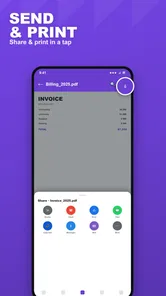
Analysis by Reviewed
When I try a new document tool, I want to reach the point where a file opens and makes sense without first learning a complicated system. PDF Reader is aimed at that straightforward job: it is a free tools app for viewing documents and keeping files organised on the device. I would approach it as a practical reader to try with a familiar PDF, rather than assume it replaces a full office suite or a cloud-based document manager.
What to expect from a simple PDF reader
The name PDF Reader is plain, and so is the central promise: open a document, read it, and keep your files in better order. That focus can be a real advantage if you mostly need to consult forms, notes, handouts, or reference documents on your phone. You do not have to think of it as a workspace for writing and collaboration; its value is in making everyday reading and file handling feel manageable.
It is published by Duka Zuri and sits in the tools category. The app is free, has an Everyone age rating, and is at version 1.4. Its average rating is 4.6, with around 500 ratings, alongside more than 700 reviews. Those figures offer a little context, but they do not tell me whether the app suits a particular workflow. The useful test is whether it opens the documents you actually need and helps you find them again later.
For a first-time user, I would keep expectations grounded. A PDF reader is most helpful when the task is specific: check a page, revisit a document, or sort a handful of files so they are not lost among downloads. If you expect editing, signing, annotation, conversion, or shared folders, do not assume those are part of the experience just because the app can view and organise documents. Treat reading and on-device organisation as the starting point.
Start with one document, not your whole folder
After installing, my suggested first step is to open one PDF you already recognise. A familiar file makes it easier to judge whether the text is legible on your screen, whether navigation feels comfortable, and whether returning to the document is straightforward. It also avoids turning your first session into a cleanup project before you know how the app handles your files.
If the document is in a downloads folder or was received through another app, locate it there first and use the available option on your device to open it with a PDF reader. The exact route can vary between Android and iOS and between file-management apps, so I would follow the controls shown on your own device rather than expect identical menus everywhere. Once the file opens, pause to confirm you are looking at the right version before organising it.
That small check matters more than it sounds. People often have several similarly named copies of a form or itinerary, and moving the wrong one into a tidy arrangement can make it harder to spot the current version. I find it useful to begin with a document whose name and contents I can identify at a glance. It gives a reliable reference point for judging the reader without creating extra work.
More From Our News Desk

 Gmail
GmailGmail in a Busy Inbox: Who Benefits Most?
From first account to crowded workday, Gmail earns its place through dependable search and flexible sorting—but its best fit depends on how much inbox maintenance you can tolerate.

 Prime Video
Switching to Prime Video: What Changes in Your Viewing Routine
Prime Video can make a compelling second home for streaming, but switching means learning a different catalog, rental layer, and route from browsing to playback.

 Universal TV Remote Control
Universal TV Remote Control Works Best as a Reliable Backup
A phone remote earns its place through quick setup and reliable habits. Here is how to get more from Universal TV Remote Control—and where its limits show.

 Weather - By Xiaomi
Weather by Xiaomi Review: Clear at a Glance, Less Clear Up Close
Xiaomi’s weather app makes everyday forecasts quick to scan, but its calm surface can leave useful details and recovery paths harder to find than they should be.

 X
XX Under Pressure: Can It Recover When Posting Goes Wrong?
A resilience-focused review of X, examining setup, mistaken posts, interruptions, weak connections, and the gaps that matter when recovery needs to be dependable.

 Clash of Clans
Clash of Clans Is Won Between the Battles
Its raids are quick; its community is a long-term project of coordination, teaching, rivalry, and shared responsibility—with all the friction that entails.
Latest News



Your first useful result: read, then make it findable
A realistic first success might be opening a travel confirmation before leaving home, checking the key details, and keeping the document among the files you are likely to need again. Another might be reviewing a school handout on the bus, then arranging it so it does not disappear beneath unrelated downloads. In both cases, the practical payoff is not a flashy feature; it is being able to read the file now and locate it later.
For organisation, I recommend choosing a simple rule before moving anything around. You might group documents by the task they support—current travel, household paperwork, or study—rather than create lots of categories for every individual file. A small collection with clear names is easier to maintain than an elaborate filing scheme that you stop using after a week. This is especially useful on a phone, where browsing deep folder structures can feel tedious.
The most dependable workflow is to open, verify, and only then organise. That sequence reduces the chance of filing a duplicate or an outdated copy as though it were the document you need. If you keep important files locally, it is also sensible to retain another copy in a place you already trust. An on-device reader can make local access convenient, but organisation inside an app should not be mistaken for a backup plan.
Where confusion can creep in
The first possible snag is finding a file. “On the device” sounds reassuring, but files can be spread across downloads, message attachments, and folders managed by other apps. If a document does not immediately appear where you expect, search the locations your phone already uses before concluding that it has vanished. This is a general file-handling habit, not a reason to move everything at once.
A second source of confusion is the difference between viewing and changing a document. Opening a PDF does not necessarily mean you can edit its text, fill every kind of form, add a signature, or mark it up. If your task depends on one of those actions, check that the app offers the exact tool before relying on it. For an occasional read, a focused reader may be enough; for a form that must be completed or signed, an app built specifically for that job may be a better fit.
There is also a practical trade-off in keeping files on the device. It can make a document convenient to access without treating a cloud library as the centre of the workflow, but it means your habits matter. Keep a copy of anything important somewhere appropriate, and avoid treating an organised view as proof that a file is protected against device loss. I would be particularly careful with documents that are difficult to replace.
How it compares with familiar alternatives
Compared with a browser’s built-in PDF view, a dedicated reader is appealing when you want a more deliberate place to revisit and organise documents. A browser is often fine for a one-off attachment or a file you only need to inspect once. If PDFs keep piling up, having a tool centred on reading and file organisation can make the routine feel less scattered.
Compared with a broad cloud-storage app, this reader’s device-focused approach is better suited to someone who wants straightforward local access and does not need a shared archive as the main event. A cloud service is usually the more natural choice when you move between devices, collaborate, or depend on automatic synchronisation. I would choose according to the problem: local reading and tidying on one hand, cross-device access and sharing on the other.
It is also not the obvious replacement for a full PDF editor. If your work involves frequent annotations, revisions, signatures, or document conversion, a more specialised product may save time even if it has a busier interface. Conversely, that larger toolset can be unnecessary for someone who mainly opens a file, reads it, and puts it away. PDF Reader makes the most sense when the simpler job is genuinely your usual job.
Who is likely to appreciate it
I would recommend giving it a try if you are new to document apps and want a low-commitment way to read PDFs and keep local files more orderly. It is a reasonable candidate for someone who regularly checks receipts, instructions, study material, or travel paperwork on a phone, but does not need a complicated editing workflow. Since it is free, trying it with a low-stakes document is an easy way to see whether its approach fits your habits.
I would steer away if you need dependable collaboration, a shared team library, advanced editing, or a tightly connected system across several devices. Those needs call for tools designed around those jobs, not simply a reader. I would also avoid reorganising sensitive or irreplaceable documents until you understand where the app keeps them and how you prefer to back them up. A calm first test is more useful than transferring an entire archive immediately.
The app was released on September 19, 2026, and its current version is 1.4. I mention that as context for a first-time user, not as a reason to expect a particular feature set. What matters in practice is still the same: test a familiar PDF, see whether it is comfortable to read, and decide whether keeping documents arranged on your device solves a real annoyance.
A sensible next step after the first read
Once the first file opens successfully, try a second document from a different part of your routine. For example, compare a short receipt with a longer reference PDF. That gives you a better feel for whether the app is useful beyond a single successful opening, without requiring a full migration. Then settle on a modest filing habit you can keep up: organise only the documents you expect to revisit, and leave one-time files alone if sorting them would take longer than finding them again.
My overall view is that PDF Reader is worth considering as a straightforward, free document-reading tool, especially for someone who wants a gentle path from installation to a useful result. Its strongest case is not that it promises to do everything, but that reading and local organisation can be enough for many everyday tasks. Start small, confirm the file is right, and use another tool when editing or syncing becomes central. That is the approach I would recommend to a friend trying it for the first time.
PDF Reader Frequently Asked Questions
What is PDF Reader, and what can I use it for?
PDF Reader is an app for opening and reading PDF documents on a mobile device. Depending on the version, it may also offer tools such as search, bookmarks, page navigation, text selection, annotation, or document sharing. Features can vary between apps with this name, so check the listing and permissions before downloading to confirm that the specific version includes the tools you need.
Can PDF Reader open files stored on my phone or in cloud storage?
Many PDF reader apps let you open documents from local device storage, email attachments, or other apps using the system’s file-sharing menu. Some may also connect to cloud services, but that support is not universal and could require signing in or granting access. Before downloading, review the app description and test how it handles files from the locations where you normally keep your documents.
Can I annotate, fill out, or sign PDFs with PDF Reader?
Reading a PDF does not necessarily mean an app can edit it. Some versions provide highlights, handwritten notes, text comments, form filling, or signature tools, while others are designed mainly for viewing. Certain features may be limited to a paid plan or may not be available at all. Check the current app listing and in-app options if annotation, form completion, or signing is essential.
Is PDF Reader free, and are there ads or paid features?
The cost depends on the particular PDF Reader app and its current terms. An app may be free to download while displaying advertisements, offering optional purchases, or placing advanced tools behind a subscription. Review the store listing for pricing and subscription details, and check the purchase screen carefully before confirming payment. Availability and pricing can also differ by country or change over time.
Is it safe to use PDF Reader for private or sensitive documents?
Treat privacy as an important consideration when opening sensitive files in any document app. Check the app’s store-page privacy disclosures, developer information, requested permissions, and whether files are processed locally or uploaded to an online service. Avoid granting access that is not needed for the features you use, and follow your organization’s security guidance before storing confidential work or personal documents in the app.
Pros
- Opens PDFs quickly
- even when switching between several documents.
- Search helps locate specific words or phrases in long files.
- Bookmarking makes it easy to return to important pages.
- Supports common document actions like zooming and page rotation.
- A straightforward layout makes basic reading easy to learn.
Cons
- Large PDFs may take longer to load on older devices.
- Small text can require frequent zooming on a phone screen.
- Some advanced tools may be limited to a paid version.
- Annotations can be awkward to edit on a small touchscreen.
- Battery use may rise during extended reading sessions.