Messages - SMS Text Messaging
- 10.00
- 4.2
- Installs
- 50.00K
- Price
- Free

Screenshots

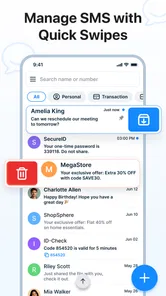
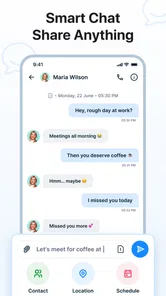
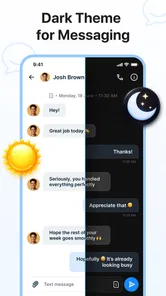
Analysis by Reviewed
Switching to a new texting app can feel unnecessary until your usual inbox becomes difficult to manage. Messages - SMS Text Messaging is aimed at that everyday problem: keeping ordinary SMS conversations quick to find, easier to protect, and less exposed to unwanted messages. I spent time looking at it as a first-time user rather than treating it like a feature checklist, and my overall impression is that it is most useful for people who want a focused communication tool without paying for the basic experience.
The app is free, belongs to the communication category, and comes from CoreSuite Apps. It has reached over fifty thousand installs and holds a 4.1 average from more than two hundred ratings, which suggests that it has already attracted a modest but real user base. Its age rating is Everyone, and the current version is 1.0.10. Those details matter less than how the app fits into your routine, but they give useful context: this is a relatively focused SMS tool, not a huge social platform or an all-in-one chat service.
What to expect before you make it your everyday inbox
The first thing to understand is that this is an SMS messaging app, not a replacement for every internet-based messenger. If your friends mainly use services with typing indicators, multimedia communities, voice calls, or large group spaces, you will still need those services. Messages - SMS Text Messaging makes more sense when your priority is dependable texting with the people who use phone numbers, including contacts who do not share the same chat platform.
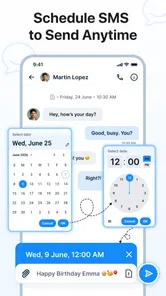
The store description points to backup, spam blocking, private chats, and a security-minded approach. In practical terms, that combination changes the way I think about the app. It is not only a place to type a message; it is also intended to help you keep your conversations under control. That makes it appealing for a personal phone where appointment reminders, family updates, delivery notices, and short work messages all arrive in the same stream.
I particularly like the idea of separating the app’s purposes in my head. The normal inbox is for communication I expect to revisit. Spam blocking is there to reduce distractions. Private chats are for conversations that deserve more care than a casual exchange. Backup is the safety net for the moments when changing phones or recovering from a device problem would otherwise turn into a stressful search for old messages.
That does not mean every feature should be enabled or used without thought. A message app sits close to your daily life, so the right setup depends on how you text. Someone who sends only a few basic messages may find the extra controls unnecessary. Someone who receives frequent unknown texts, keeps important confirmations, or wants a cleaner private space is more likely to notice the benefit quickly.
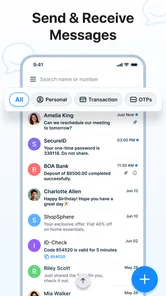
One realistic example is a busy weekday morning. I might receive a school update, a delivery text, a confirmation code, and a message from a family member within a short period. With a basic inbox, those conversations can blend together. Here, the appeal is having a more deliberate place to review them, decide which messages deserve attention, and reduce the chance that an unwanted text distracts me from something important.
More From Our News Desk

 Gmail
GmailGmail in a Busy Inbox: Who Benefits Most?
From first account to crowded workday, Gmail earns its place through dependable search and flexible sorting—but its best fit depends on how much inbox maintenance you can tolerate.

 Prime Video
Switching to Prime Video: What Changes in Your Viewing Routine
Prime Video can make a compelling second home for streaming, but switching means learning a different catalog, rental layer, and route from browsing to playback.

 Universal TV Remote Control
Universal TV Remote Control Works Best as a Reliable Backup
A phone remote earns its place through quick setup and reliable habits. Here is how to get more from Universal TV Remote Control—and where its limits show.

 Weather - By Xiaomi
Weather by Xiaomi Review: Clear at a Glance, Less Clear Up Close
Xiaomi’s weather app makes everyday forecasts quick to scan, but its calm surface can leave useful details and recovery paths harder to find than they should be.

 X
XX Under Pressure: Can It Recover When Posting Goes Wrong?
A resilience-focused review of X, examining setup, mistaken posts, interruptions, weak connections, and the gaps that matter when recovery needs to be dependable.

 Clash of Clans
Clash of Clans Is Won Between the Battles
Its raids are quick; its community is a long-term project of coordination, teaching, rivalry, and shared responsibility—with all the friction that entails.
Latest News



Who will feel at home here
I would recommend trying it if you still depend heavily on SMS and want more control than the default messaging app provides. It can suit people who change phones occasionally, users who dislike promotional texts, and anyone who wants a separate sense of privacy for selected conversations. It is also a reasonable choice for a family member who needs straightforward texting rather than a complicated social network.
The app is less convincing for someone whose communication happens almost entirely through internet chat services. If your groups, photos, calls, and shared media all live elsewhere, an SMS-centered app may simply add another inbox. It is also not the best first choice for a person who expects advanced collaboration tools or a broad community experience. I would keep the usual alternative available if your contacts rarely text through standard phone messaging.
Getting started without making the switch confusing
The first setup should be approached as a small migration rather than a dramatic change. Install the app, open it, and take a moment to understand which screen represents your regular conversations. The important early decision is whether you want it to become your main SMS app. On Android, a messaging app generally needs that role to handle incoming and outgoing texts consistently, so do not rush past the system prompt if it appears.
My advice is to begin with recognition rather than customization. Look for the conversation with someone you message often, check that the contact name and recent thread look familiar, and then send a simple reply when you have a natural reason to do so. This gives you a low-pressure test of the basic workflow before you start sorting private chats or adjusting spam controls.
Because the minimum operating system is Android 7.0, the app is accessible to people using older Android phones as well as newer devices. That wider compatibility can be useful in a household where not everyone upgrades at the same time. Still, an older phone may make any messaging app feel slower or less comfortable, so I would judge the experience by how quickly your own device opens conversations and displays the inbox.
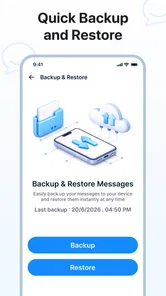
Backup deserves attention early, but I would not treat it as something to configure blindly. If you rely on old texts for addresses, booking details, family history, or work instructions, decide what you actually need to preserve and review the available backup choices carefully. A backup is valuable only when you understand how it is created and how you would restore or access it later. The practical tip is simple: test your understanding with a conversation you can afford to lose before trusting the process with everything.
Private chats also benefit from a gradual approach. Start with one conversation that genuinely needs extra privacy rather than moving every thread immediately. That lets you see how the private area fits your habits. The non-obvious trade-off is convenience: stronger separation can make a conversation harder to reach when you are in a hurry. I prefer privacy tools that I can use intentionally instead of placing every message behind another step.
Your first meaningful success
The best first test is not merely opening the inbox. Send or answer one ordinary message, confirm that the conversation remains easy to find, and then return to it later. That small loop tells you more than reading feature labels. You learn whether the layout feels natural, whether the contact thread is clear, and whether the app helps you reply without making a basic exchange feel overdesigned.
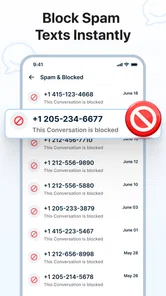
After that, choose a harmless unknown message as your spam-control test. Do not begin by blocking a number you may need, such as a clinic, courier, school, or service provider. Instead, review the sender carefully and use the blocking option only when you are confident the message is unwanted. This is one of the most useful habits with any spam blocker: automation can save time, but a mistaken block can hide something you were waiting for.
I also recommend using the search or conversation list deliberately during the first few days, even if you normally remember where everything is. Try finding an older exchange, opening a recent thread, and returning to the inbox. This creates a personal map of the app. When you later receive a message during a busy moment, you will already know where to look rather than learning the interface while distracted.
A useful workflow is to keep important practical texts in their normal conversation, reserve private chats for genuinely sensitive subjects, and treat backup as protection rather than a filing system. That prevents the app from becoming overcomplicated. The goal is not to create a perfect archive; it is to make everyday communication safer and easier to recover.
Where first-time users may hesitate
The biggest possible confusion is the difference between SMS and internet messaging. A new interface can look modern while the underlying message type remains ordinary carrier texting. That means your experience can still depend on your phone service and the recipient’s number. If a contact expects a feature-rich internet conversation, explain that you are sending a regular text or continue using the service where that group already communicates.
Another point that deserves care is the word “private.” A private chat area can organize or protect selected conversations inside the app, but I would not assume that it makes every part of communication invisible or removes the need for a secure phone lock. Privacy is a complete routine: protect the device, choose private conversations thoughtfully, and avoid sharing sensitive information simply because a thread has an extra privacy label.
Spam blocking can also create uncertainty when a legitimate sender uses an unfamiliar number. I would check the message content and context before deciding. For example, a one-time delivery update may look suspicious until it matches an order you placed. The best use of the blocker is to reduce repeated nuisance messages, not to eliminate every number you do not instantly recognize.
Backup is another area where expectations should stay realistic. It can help preserve conversations, but it should not replace your own understanding of where important information lives. For critical travel details or medical instructions, I would still keep the information in the original service or another dependable place. SMS history is useful evidence of a conversation, but it is not always the ideal long-term document.
There is also a social adjustment when changing the default messaging app. A contact does not need to install the same app for ordinary SMS, which is convenient, but that also means they will not automatically share the app’s private-chat or inbox-management experience. I found this distinction important: the app can improve my side of the conversation without changing what the other person sees.
How it compares with the usual choices
The default phone messaging app remains the simplest alternative for people who want no learning curve. It is already familiar, usually integrated with contacts, and adequate for occasional texting. Messages - SMS Text Messaging earns its place when backup, spam control, and private conversation handling are important enough to justify trying something new.
Internet messengers are stronger when a group needs photos, calls, reactions, shared media, or continuous conversation across devices. They can feel more alive for social communication, while this app is better suited to direct phone-number messaging and practical exchanges. I would choose the SMS app for broad reach and everyday utility, and an internet messenger when everyone involved already uses the same service.
There is a trade-off between simplicity and control. A minimal inbox may be quicker for a person who sends only a handful of texts. The extra tools here become more valuable as message volume rises or as you begin caring about recovery and unwanted senders. In other words, the app’s strengths are not equally visible to everyone. Its value grows with the amount of clutter and importance in your SMS history.
Small habits that make the app work better
First, do not wait for a phone change before thinking about backup. Set up your preferred protection while your conversations are still available, then make sure you understand the recovery path. Second, review blocked or filtered messages periodically if the app gives you that control, especially when you are expecting a message from a business or organization. Third, keep private chats limited to conversations where the extra separation has a clear purpose.
Another practical habit is to answer important texts with enough context to identify the conversation later. A short reply such as “yes” may make sense now but be confusing after several weeks. This is not a special feature, but the app’s focus on organized messaging makes the habit more worthwhile. Clear replies make your history more useful when you return to it.
I would also avoid treating the spam blocker as a substitute for caution. Do not follow suspicious instructions, share codes, or open unexpected links simply because a message appears in a trusted-looking inbox. A cleaner message list is helpful, but safe communication still depends on what you choose to do with each message.
My recommendation after using it
Messages - SMS Text Messaging is a sensible free option for Android users who want their regular texting to feel more managed without moving every conversation to an internet platform. CoreSuite Apps has focused the experience on practical concerns: keeping messages available, reducing nuisance texts, and giving selected conversations a more private place. Those are useful priorities for a communication app that people may open many times during an ordinary day.
I would not install it expecting it to replace group-chat services, solve every privacy concern, or transform SMS into a full social platform. Its strongest case is narrower and more believable: you want a dependable SMS inbox with tools that help you protect, recover, and organize the conversations you actually have. That focus is also its limitation, because users who rarely text may not gain enough to justify changing their routine.
For a first-time user, the safest path is to start with one familiar conversation, confirm that sending and receiving feel comfortable, then explore backup, private chats, and spam controls one at a time. That approach gives you a meaningful result quickly without making the setup feel like a technical project. If your phone runs Android 7.0 or newer and SMS remains important in your life, I think this app is worth trying as a practical alternative to the standard inbox.
My final view is positive but measured: the app is most valuable when control matters more than novelty. It will not make every kind of messaging better, yet it can make ordinary texting less cluttered and easier to manage. For people who want that specific improvement, Messages - SMS Text Messaging is a straightforward place to begin, while users who live inside internet-based communities should stay with the platforms their contacts already use.
Messages - SMS Text Messaging Frequently Asked Questions
Is Messages - SMS Text Messaging free, and is it suitable for everyone?
Messages - SMS Text Messaging is a free communication app from CoreSuite Apps, so you can download it without paying for the app. It is rated for Everyone, making it suitable for a broad audience. Keep in mind that your carrier may charge for SMS or multimedia messages under your mobile plan, so the app being free does not necessarily mean every message you send is free.
Will Messages - SMS Text Messaging work on my Android phone?
The app requires Android 7.0 or later, so check your phone’s operating-system version before downloading. Compatibility can also depend on your device and carrier, particularly for features such as group texts and multimedia messaging. The current version is 1.0.10. If your phone meets the minimum requirement, you can consider it as an alternative to the messaging app already installed on your device.
What is Messages - SMS Text Messaging, and what can I use it for?
Messages - SMS Text Messaging is an app designed for sending and receiving traditional SMS and, depending on your carrier and device, multimedia messages such as photos, videos, and group texts. It can serve as an alternative to the phone’s default messaging app, offering a straightforward interface for organizing conversations, composing messages, and managing contacts. Available features may vary by Android version, carrier, and device model.
Does Messages - SMS Text Messaging require an internet connection?
Basic SMS messages normally do not require Wi-Fi or mobile data because they are sent through your cellular network. However, sending multimedia messages may use mobile data, and some versions or connected features could depend on an internet connection. You should also have an active SIM card, a supported phone number, and a mobile plan that includes messaging. Carrier charges may apply, especially for international texts and media.
Can I send group messages, photos, videos, and other attachments?
The app generally supports common messaging functions, including individual conversations, group texts, and multimedia attachments such as images or short videos. The exact limits depend on your carrier, messaging plan, file size, and the recipient’s phone. Large attachments may fail or be compressed, while group messages can sometimes be delivered as separate replies or multimedia messages depending on network settings and device compatibility.
Pros
- Simple interface makes texting quick and easy to manage.
- Supports group conversations for coordinating with multiple contacts.
- Message search helps locate older texts without scrolling endlessly.
- Delivery and read indicators provide useful sending feedback.
- Works well as a lightweight alternative to feature-heavy messaging apps.
Cons
- Requires carrier support for SMS and MMS functionality.
- Standard text messages may incur carrier charges without an unlimited plan.
- Spam filtering may not catch every unwanted or suspicious message.
- MMS media quality can be limited compared with internet-based messengers.
- Advanced chat features may vary depending on the phone and network.