Hubble Connected for Motorola
- 5.15K
- 3.7
- Installs
- 1.00M
- Price
- Free

Screenshots
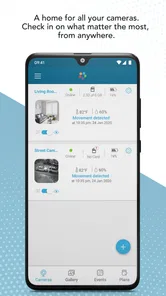
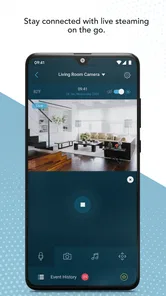
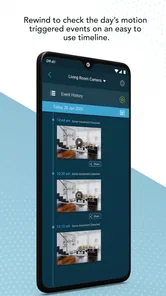
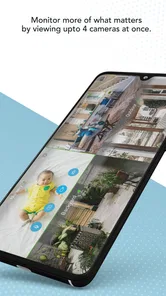
Analysis by Reviewed
Before relying on a baby-monitor app, I would first check that the camera and phone are using the same account and that the monitor is powered and connected. A blank view or a connection message can feel alarming, but it does not automatically mean the app is broken. I find it helps to test the setup while close to the camera, before depending on it from another room or away from home.
Small setup checks that save time
When pairing feels stuck, I would work through the basics one at a time: confirm the camera has power, check the home network, and make sure the phone itself has a working connection. Then reopen the app and try again rather than changing several things at once. This makes it easier to tell whether the issue is with the camera, the network, or the phone. Since this app is intended to work with Motorola baby monitors, it is not a general-purpose camera viewer; the specific monitor matters.
I also recommend deciding who in the household needs access before bedtime. If more than one caregiver will use the monitor, test each person’s access in advance instead of discovering a login or pairing snag during a nap. Keep the phone’s sound at a level where alerts or audio are useful, and try the listening and speaking functions while the room is calm. That small rehearsal helps you understand the practical delay and volume in your own home.
Recovering a routine without overreacting
If the live view stops responding, I would check whether other internet activity is working on the phone, then reopen the app and verify that the camera is still online. A temporary interruption can happen anywhere along that chain. Avoid repeatedly resetting the monitor before checking power and connectivity, since that can turn a brief hiccup into another setup session. For a household with a regular nap routine, keeping a separate, familiar way to check on the baby is sensible rather than treating a phone screen as the only safeguard.
That distinction matters because this is a convenience and monitoring aid, not a substitute for safe sleep practices or an adult checking on a child when needed. I would also avoid assuming that a temperature reading or a pattern log tells the whole story: use those details as context, not as a diagnosis or a replacement for your own judgement.
Where it fits among parenting options
Compared with a basic audio-only monitor, a compatible camera setup can let me see what is happening as well as hear it, which is useful when a sound alone leaves me guessing. Compared with checking a camera feed through a general home-security app, a baby-monitor-focused setup may feel more suited to caregiver routines, but it depends on owning compatible hardware. If you do not have a Motorola monitor, or you want a standalone phone app that watches a child without a camera, this is not the right fit.
Have you ever wondered how you can keep an eye on your little one without constantly hovering over the crib? Well, let me introduce you to a lifesaver – the Hubble Connected for Motorola. This app is a game-changer for parents and caregivers alike, designed to work seamlessly with Motorola baby monitors to give you peace of mind, whether you're in the next room or halfway across the world.
More From Our News Desk

 Gmail
Gmail in a Busy Inbox: Who Benefits Most?
From first account to crowded workday, Gmail earns its place through dependable search and flexible sorting—but its best fit depends on how much inbox maintenance you can tolerate.
 Prime Video
Switching to Prime Video: What Changes in Your Viewing Routine
Prime Video can make a compelling second home for streaming, but switching means learning a different catalog, rental layer, and route from browsing to playback.
 Universal TV Remote Control
 Works Best as a Reliable Backup
A phone remote earns its place through quick setup and reliable habits. Here is how to get more from Universal TV Remote Control—and where its limits show.
 Weather - By Xiaomi
Weather by Xiaomi Review: Clear at a Glance, Less Clear Up Close
Xiaomi’s weather app makes everyday forecasts quick to scan, but its calm surface can leave useful details and recovery paths harder to find than they should be.

 X
X Under Pressure: Can It Recover When Posting Goes Wrong?
A resilience-focused review of X, examining setup, mistaken posts, interruptions, weak connections, and the gaps that matter when recovery needs to be dependable.

 Clash of Clans
 Is Won Between the Battles
Its raids are quick; its community is a long-term project of coordination, teaching, rivalry, and shared responsibility—with all the friction that entails.
Latest News



Keeping it Simple and Smart
The beauty of the Hubble Connected for Motorola app lies in its simplicity and smart functionality. Setting it up is as easy as pie. Just download the app, connect it to your Motorola camera, and voilà! You're all set to monitor your baby in real-time. The app’s intuitive interface makes it incredibly user-friendly, so even if you’re not a tech wizard, you’re in safe hands.
Features That Make a Difference
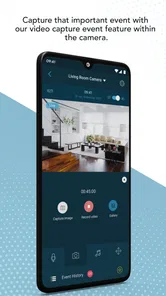
What sets this app apart is its robust set of features. First off, the live HD streaming is crystal clear, which means you won’t miss a single moment of your baby’s cuteness overload. Plus, it offers two-way audio, so not only can you hear your baby cooing, but you can also soothe them with your voice, no matter where you are.
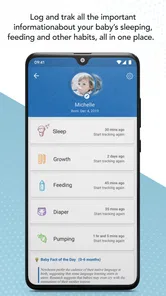
Another standout feature is the room temperature sensor. It’s like having an extra pair of eyes to ensure your baby’s environment is just right. And if you’re into tracking every little detail, the app also logs sleep and feeding patterns. It’s like having a personal baby diary right at your fingertips!
Security and Peace of Mind
Security is a big deal, especially when it comes to our little ones. The app uses bank-level encryption to ensure that your video streams and data are kept safe and sound. So, you can rest easy knowing that your family’s privacy is well-protected.
Why You’ll Love It
The Hubble Connected for Motorola isn’t just an app; it’s like having an extra set of helping hands. It gives you the freedom to move around the house or even step out without the constant worry of not being able to see your baby. The convenience it brings is unmatched, and it truly makes parenting just a tad bit easier.
In a world where technology is constantly evolving, having a reliable app like this is a blessing. It’s not just about being connected; it’s about being connected with assurance and ease. So, if you’re a parent looking to add a little tech-savvy to your parenting toolkit, the Hubble Connected for Motorola is definitely worth checking out!
What to expect from the daily routine
The most useful way to judge a monitor app is during an ordinary evening, not during a feature tour. Imagine settling a baby for a nap, then moving to the kitchen to prepare dinner. A quick look at the camera can answer whether a rustle was a change of position or a sign that the child is waking, while audio lets you keep listening without standing beside the crib. If the child is unsettled, speaking through the monitor may be worth trying before walking back in, though I would treat it as an option rather than assume a voice will always soothe them.
That routine also shows why a phone-based view is convenient but not effortless. The phone needs to stay charged, the app has to remain usable, and a weak connection can interrupt the very moment you want to check. I would set up a dependable charging spot and make sure the screen and sound behave as expected before bedtime. If you need your phone for calls or other tasks, decide how you will notice an alert or return to the monitor rather than assuming the app will always be front and center.
Who benefits most, and who may be better served elsewhere
I see the clearest fit for parents who already own a compatible Motorola monitor and want to check the nursery from a phone instead of relying only on a separate viewing unit. It can also make sense for caregivers who share nighttime or nap duties, provided everyone has tested their access and understands how to open the live view. The app is less compelling if you are shopping for a camera first and have not checked that your chosen monitor works with it; compatibility is the starting point, not a small detail to sort out later.
It is also a poor match for someone expecting a phone alone to become a baby monitor. The camera is part of the setup, and a smartphone app cannot replace the physical device that captures the room. If you mainly want a simple sound-only check from one room to another, a dedicated audio monitor may be less dependent on a phone and home internet. If you want a broad camera system for several rooms, a general camera app may suit that wider job better, though it may not be organized around baby-care use.
My practical comparison is less about declaring one option best and more about deciding what failure you can tolerate. A dedicated monitor can keep the viewing task separate from phone use; this app’s appeal is having the camera experience on a device you already carry. An audio monitor keeps things simple when seeing the image is not important. A home-security camera may cover more than the nursery, but it is not automatically a better caregiver tool. Choose according to your hardware, the people who need access, and whether a phone interruption would cause real trouble in your routine.
Making logs and readings useful without overreading them
Sleep and feeding records are most helpful when they answer a practical question, such as whether a change in the evening routine seems to coincide with a different sleep pattern. I would use them as a lightweight reference, not as a perfect diary: a log is only useful if the household records events consistently, and an entry cannot explain why a baby woke or fed. If tracking starts to feel like another job, focus on the details you genuinely use rather than trying to document every moment.
The temperature information has a similar trade-off. It can prompt you to check the room, but a displayed number is not a complete assessment of a child’s comfort or safety. I would confirm the room conditions directly and follow sound sleep guidance rather than making a decision from the app alone. These features are best treated as prompts for attention, not as automatic judgements about what a parent should do next.
Sorting out trouble by narrowing the cause
When a connection issue appears, the most useful troubleshooting habit is to change one thing at a time. First check whether the monitor is powered and whether the phone can use its connection for other tasks. Then close and reopen the app and try the live view again. If the problem happens only in one part of the home, that points your attention toward the connection there rather than toward account setup. If another caregiver can access the camera while your phone cannot, focus on that phone’s connection and app session before disturbing the monitor configuration.
I would also distinguish between an app that opens but cannot reach the camera and an app that will not open properly at all. Those are different symptoms, so note what happens before trying a fix. Restarting the phone or checking for an available app update can be reasonable general steps, but repeatedly changing passwords, unpairing equipment, or resetting hardware without a clear reason makes it harder to identify what worked. For anything that still blocks normal use, the monitor’s instructions and Hubble Connected support are more useful than guessing at model-specific steps.
There is a practical question about using the system away from home, too. I would test that situation while someone else is at home and able to confirm the monitor’s status, rather than waiting until I am out and need the feed urgently. A successful check from another location can show whether the household’s usual setup works beyond the local room, but it does not guarantee that every network or phone connection will behave the same way. Keep an alternative way to contact the caregiver who is with the baby.
What the app’s catalog details mean in practice
Hubble Connected is the developer behind this free parenting app, which has an average rating of 3.8 from around 26,000 ratings and more than a million installs. Those figures suggest that many families have tried it, but they do not tell me whether it will work with a particular camera or fit a particular household. I would use the rating as a reason to read current user feedback with care, especially comments that name the same monitor model and describe the same kind of connection issue.
The app is listed for everyone, and it launched in January 2014. The current version is 6.5.68, with Android 5.0 as the minimum operating system. It is free to install, while in-app purchases range from $5.99 to $149.00 per item. I would check the purchase details inside the app before paying for anything and make sure the feature is relevant to the way I plan to use the monitor. A free download does not mean every optional service is included at no cost, so it is sensible to understand what a purchase adds before committing.
Compatibility should remain the first buying question. Before choosing a Motorola camera or handing the app to another caregiver, confirm the exact monitor model and make a short test of the functions you expect to use. That is more useful than relying on a broad promise that a particular app works with a brand, because camera families and app support can vary. I would also avoid treating a high rating or a long history as proof that a particular setup will be trouble-free; the relevant test is your camera, phone, network, and household routine together.
A considered choice for a connected nursery
My overall view is that Hubble Connected for Motorola is best understood as the phone companion to compatible baby-monitor hardware, not as a complete solution on its own. Its strongest case is straightforward: you want to view and listen to the nursery from a phone, and your Motorola monitor is supported. Two-way audio, camera viewing, and the option to refer to sleep or feeding records can be useful in a real household, especially when caregivers share responsibility and have rehearsed the setup before they need it.
The trade-off is that the experience depends on several pieces working together. Hardware compatibility, power, network access, the phone, and caregiver access all matter, and a troubleshooting routine cannot remove every interruption. I would skip it if you need a standalone app without a camera, want a monitor independent of phone connectivity, or are not comfortable relying on a connected setup for routine checks. For everyone else, I would install it only after confirming the camera match, test the key functions at home, and keep a familiar backup check available. That is the difference between a useful extra set of eyes and a tool you expect to solve every nursery concern.
Hubble Connected for Motorola Frequently Asked Questions
What is Hubble Connected for Motorola, and who is it for?
Hubble Connected for Motorola is a parenting app developed by Hubble Connected. It is intended for people who use compatible Motorola connected devices and want to access them through an app. Its store summary describes the experience as insightful, clutter-free, and organized, and notes that it works with Nest. Before downloading, consider whether the app fits the devices and monitoring needs in your household.
What Android version do I need to install the app?
The Android version requires Android 5.0 or later. Check your phone or tablet’s operating system before installing, and also make sure that the Motorola device you plan to use is supported. The app is free to download, but some options may involve in-app purchases, so it is worth reviewing those choices before buying anything.
What devices and operating systems do I need to use Hubble Connected for Motorola?
Hubble Connected for Motorola is a parenting app from Hubble Connected, intended to work with supported Motorola connected devices. Before downloading, check that your particular device is compatible and that your phone or tablet runs Android 5.0 or later if you are installing the Android version. The app is free to download, though some features may involve in-app purchases.
What features does the Hubble Connected app offer for Motorola devices?
The Hubble Connected app for Motorola offers a wide range of features tailored to enhance your smart home experience. It provides real-time video streaming, motion and sound detection alerts, two-way audio communication, and remote access to your Motorola cameras. Additionally, the app supports cloud storage for easy access to video clips and snapshots, making it a comprehensive solution for home monitoring.
Is the Hubble Connected app compatible with all Motorola devices?
The Hubble Connected app is designed to be compatible with a variety of Motorola devices, particularly those integrated with smart home features. However, compatibility may vary depending on the model and operating system version. It is recommended to check the app’s compatibility list or contact customer support to ensure your device is supported before downloading.
Pros
- User-friendly interface enhances accessibility.
- Real-time notifications ensure timely alerts.
- Supports multiple cameras for wider coverage.
- Seamless integration with smart home devices.
- High-quality video streaming and recording.
Cons
- Subscription required for premium features.
- Initial setup can be slightly complex.
- Occasional connectivity issues with cameras.
- Limited customization for notification settings.
- Some features may drain battery quickly.