Gryphon Connect
- 344.00
- 3.3
- Installs
- 10.00K
- Price
- Free

Screenshots
Analysis by Reviewed
I approached Gryphon Connect as a companion for managing a connected home rather than as a typical lifestyle app. Its role makes the quality of the surrounding network especially important: the app is most useful when it can communicate reliably with the Gryphon mesh WiFi system and present the information or controls I need without getting in the way. That makes it a more practical choice for households thinking about coverage, connected devices, and home protection than for someone simply looking for a general-purpose lifestyle download.
The app comes from Gryphon Online Safety and is free to install, with optional in-app purchases ranging from $0.99 to $89.99 per item. It is rated for Everyone, runs on Android 5.0 or later, and the current version is 05.0003.55. Those details make it accessible to many older Android phones, although access to the latest app behavior can still depend on the phone, the home network, and the Gryphon equipment being used.
How the network shapes the everyday experience
The central thing to understand is that this is not an app I would judge in isolation. A weather app can still show useful information when the connection is temporarily poor, and a notes app can usually let me work without thinking about the network. Gryphon Connect belongs to a different group. Its value is tied to the connected home, so moments such as opening the app to check the household setup, reviewing connected activity, or adjusting an available protection setting naturally depend on communication between the phone, the app, and the home system.
That dependence is not automatically a weakness. In fact, it is part of the point. A mesh WiFi system is meant to coordinate the home network, and a companion app gives me a more approachable way to interact with that system than a traditional router interface. Instead of treating networking as something I only touch when the internet breaks, the app encourages me to think about how the household is connected and how that connection is being managed.
My practical advice is to open the app while standing somewhere with a dependable connection during the initial setup and whenever I want to make an important change. This reduces the chance of mistaking a delayed screen for a failed setting. It also gives me a clearer baseline: if the app behaves normally in a strong connection area, I can separate a temporary connectivity issue from a broader problem with the home system.
The experience is more valuable for people who want visibility than for people who only want a router to disappear into the background. Parents may appreciate having a central place associated with home safety, while someone who enjoys tuning network behavior may prefer the convenience of an app over repeatedly signing into a browser-based administration page. On the other hand, a user who dislikes connected-device management may find the whole concept unnecessary.
What happens when the phone is away from home
Mobile use is where expectations need to be realistic. I would not treat the app like a remote-control tool that should feel identical everywhere. When I am away from home, the phone is relying on its current mobile or WiFi connection to reach the home service, while the home system must also be reachable. A weak signal, an unstable public hotspot, or a sleeping phone connection can make the experience feel slower even when the household network itself is working correctly.
More From Our News Desk

Weather by Xiaomi Review: Clear at a Glance, Less Clear Up Close

X Under Pressure: Can It Recover When Posting Goes Wrong?

Clash of Clans Is Won Between the Battles

Android Auto Makes the Case for Quieter Car Software

MobiOffice: Transforming Mobile Productivity with Seamless Integration

EA SPORTS FC™ Mobile Soccer: Redefining Mobile Sports Gaming
This matters when I am checking something quickly from outside the house. If a screen takes longer to update, I would first look at the phone’s current connection rather than immediately assuming that the Gryphon system has failed. A useful habit is to retry only after moving to a stronger signal or switching between mobile data and a trusted WiFi network. Repeated tapping is rarely helpful when the real problem is a poor connection.
Using the app on a phone also changes how I approach detailed decisions. A small display is comfortable for a quick check, but less comfortable for carefully reviewing several household choices in succession. I prefer to make larger changes when I have time, a charged phone, and a stable connection. That is especially sensible in a family home, where a rushed adjustment can affect more than one person’s access or routine.
Another mobile consideration is account and device context. If several people in the household use the system, it is worth deciding who should handle changes and who only needs awareness of the network. The app may be easy to open, but ease of access is not the same as good household organization. I would keep administrative decisions with the person who understands the home’s devices and can explain a change if another family member suddenly notices different behavior.
Recovering from a slow screen or interrupted change
Connectivity-related frustration usually comes from uncertainty. I tap a control, the screen pauses, and I do not know whether the action is still processing or whether nothing happened. With a network-management app, immediately repeating the same action can create confusion. My preferred recovery process is deliberately simple: wait a moment, check whether the screen has refreshed, move to a stronger connection if I am on mobile data, and then reopen the relevant area before trying again.
If the app appears out of step with the home network, I would also check the obvious physical causes. Is the phone connected to the expected network? Is the Gryphon hardware powered? Has the household internet connection changed? Are other devices experiencing the same interruption? These checks sound basic, but they prevent me from treating every app delay as an application defect.
A restart can be useful, but I would use it as a clean recovery step rather than a reflex. Closing and reopening the app may clear a stalled session on the phone. If the wider home connection is down, however, restarting the app cannot repair the internet service. That distinction is important because the app is the control surface, not a replacement for the underlying network connection.
I also recommend avoiding major changes while someone is depending on the network for a time-sensitive task. A family member working from home, a child attending an online lesson, or a household using a connected security device is a good reason to postpone experimentation. Even when an adjustment is sensible, the timing can make the experience feel worse than it is.
The best recovery habit is to diagnose the connection before blaming the app. That one step makes the product feel much more predictable. It also keeps me from making unnecessary changes simply because a phone screen was slow to respond.
Using it without wasting mobile data
Because this is a connected-home companion, I would use it deliberately when I am away from home rather than leaving it open and repeatedly refreshing. A quick check over mobile data is one thing; constant reopening while traveling can be wasteful and may not provide better information. If I only need to review the household situation once, I would wait for a stable connection, perform the check, and close the app.
At home, I would normally use a trusted WiFi connection for setup and management. That is not just about saving mobile data. It also gives the app a more direct path to the home environment and makes troubleshooting easier. If the app behaves differently on mobile data and home WiFi, that comparison itself becomes useful evidence about where the problem sits.
People with limited data plans should be especially careful during travel or in areas with unreliable public WiFi. The app is not something I would keep open simply for reassurance. A better workflow is to decide what I actually need to know, check it once, and avoid turning network management into a constant background activity.
There is also a privacy-minded reason to prefer trusted connections. Home-network management is a sensitive activity, so I would avoid making important changes from an unknown public hotspot when I can wait. If a decision can safely wait until I return to a familiar connection, that is my preference. Convenience matters, but the ability to manage the home from anywhere does not mean every location is equally suitable.
Who gets the most from this app
I see the strongest fit among people who already use or are considering Gryphon’s mesh WiFi approach and want a simpler way to stay involved with the home network. It is also a reasonable match for households where several people share connected devices and one person needs a clearer overview of what is happening. The lifestyle category makes sense here because the app sits between home organization, family routines, and network safety rather than focusing only on technical configuration.
A realistic example would be a family preparing for a busy evening. One parent is working from home, another is using a phone, and children are connecting tablets or other devices. Instead of treating each connection problem as an isolated mystery, the household can use the companion app as part of its network-management routine. The useful insight is not merely that an app exists; it is that a central view can help the person responsible for the network decide whether an issue belongs to the home system, a particular device, or the phone’s current connection.
I would also recommend it to someone replacing a conventional single-router setup with a mesh system and wanting a more approachable management experience. Mesh networking can be difficult to understand when all I see is a list of cables and lights. A companion app gives the arrangement a more familiar, phone-centered entry point.
I would skip it if I do not own compatible Gryphon equipment or have no intention of managing a connected home. Installing it simply because the app is free would not give me much value. I would also look elsewhere if my priority were advanced network diagnostics, highly technical customization, or a broad smart-home dashboard covering unrelated brands. Gryphon Connect is more focused than that, and its focus is useful only when it matches my setup.
How it compares with ordinary alternatives
The usual alternative is the administration app or browser panel supplied with a standard router. Those tools can be perfectly adequate for changing basic network settings, but they often feel designed for occasional troubleshooting rather than everyday household awareness. Gryphon Connect is more appealing to me when the goal is to make network safety part of normal home management, not just something I inspect after a failure.
Another alternative is using separate parental-control, security, or smart-home apps. That approach can provide deeper specialization, but it also creates more accounts, more notifications, and more places to look when something changes. A Gryphon-centered experience has the advantage of keeping the home network and its safety-oriented controls closer together. The trade-off is that I am choosing a more focused ecosystem rather than a neutral tool that works equally with every router and device.
For technically confident users, a router’s web interface may still be preferable. It can feel more direct, especially when I need detailed information or settings that are easier to compare on a larger screen. For a household user who wants a less intimidating way to interact with the network, the app is likely the friendlier option. Neither choice is universally better; the right one depends on whether I value approachability or granular control.
The average rating is 3.3 from around 580 ratings, with roughly 344 written reviews, and the app has passed 10 thousand installs. I read those figures as a sign that the product has a real audience but is not a universally smooth experience. The rating does not tell me whether a particular complaint comes from setup, hardware, connectivity, or expectations, so I would not use it alone to decide. I would weigh it alongside the fact that this app’s usefulness depends on a broader Gryphon environment.
Version, cost, and the practical commitment
The free download lowers the barrier to trying the companion experience, but the optional purchases deserve attention before I commit to a long-term setup. Individual items range from $0.99 to $89.99, which is a wide span. I would review each purchase screen carefully and decide whether it solves a real household need rather than assuming every available option is necessary.
The app was released on January 3, 2020, and its current version is 05.0003.55. Its minimum Android requirement of 5.0 is relatively accommodating for older phones. Still, an older operating system can affect the overall experience through device performance, connection handling, or compatibility with other parts of the home setup. I would keep the phone’s software in good condition and avoid judging the app on an aging device that already struggles with other connected services.
The Everyone age rating makes it broadly suitable from a content perspective, but that does not mean every household member should have equal control. In my view, families should separate the question of who can use the app from who should be allowed to change network behavior. A child may be comfortable viewing a status screen, while an adult remains responsible for settings that affect the entire home.
My connectivity verdict
Gryphon Connect makes the most sense when I want a phone-based relationship with a Gryphon mesh WiFi system and I am willing to accept that the app’s performance is connected to the quality of the network around it. Its strongest quality is not a single flashy feature; it is the way it can bring home-network management into an everyday routine that feels less technical than a traditional router panel.
The limitations are equally clear. A weak mobile signal, an interrupted home connection, or uncertainty about whether a change was applied can make the experience frustrating. It is not the right choice for someone seeking a universal smart-home controller or a deeply technical networking console. I would also avoid treating it as a reason to buy into an ecosystem without first deciding whether that ecosystem fits my household.
For the right user, I would recommend giving it a careful trial: install it on a supported Android phone, use a stable trusted connection during setup, make small changes before attempting anything important, and observe how it fits the household’s real routines. If that workflow feels natural, the app can turn an otherwise invisible part of home life into something easier to understand and manage. If I only need occasional router maintenance, a conventional alternative may be simpler and more economical.
Gryphon Connect Frequently Asked Questions
Can I set up Gryphon Connect without technical networking experience?
Yes. Gryphon Connect is designed to make everyday router management easier, so you can use the app to set up and manage a supported Gryphon network without relying on a traditional web administration panel or advanced networking knowledge. You will still need a compatible Gryphon router or mesh system and a Gryphon account. The app’s setup flow is intended to guide you through connecting and managing your home network.
What is Gryphon Connect, and what can I use it for?
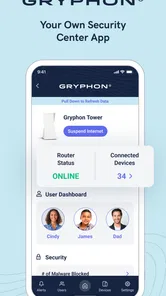
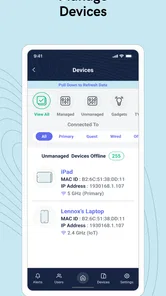
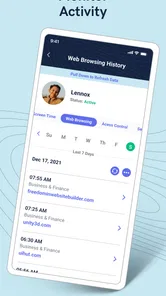
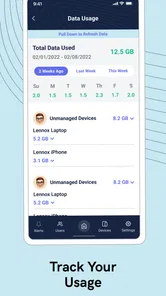
Gryphon Connect is the companion app for Gryphon smart home Wi-Fi routers and mesh systems. From the app, you can set up your network, view connected devices, manage internet access, create guest networks, configure parental controls, and monitor basic network activity. It is designed to make everyday router management easier without requiring advanced networking knowledge or using a traditional web administration panel.
Is Gryphon Connect compatible with every Wi-Fi router?
No. Gryphon Connect is primarily intended for Gryphon-branded routers and mesh Wi-Fi products, so it may not provide full functionality with equipment from other manufacturers. Before downloading, check the app listing and Gryphon’s official compatibility information to confirm that your router model and mobile device are supported. Some features can also depend on the specific Gryphon hardware generation and firmware version.
Does Gryphon Connect include parental controls and content filtering?
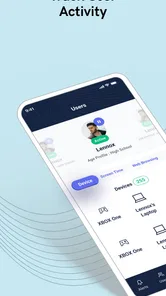
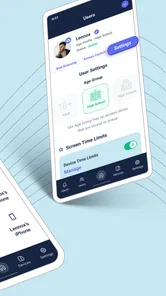
Yes, Gryphon Connect offers family-management tools that can help parents control how devices use the home network. Depending on the supported Gryphon model and subscription status, you may be able to create user profiles, schedule internet access, pause connectivity, and apply content filters. These tools are useful for managing household devices, although they should not be treated as a complete replacement for supervision or device-level safety settings.
Does Gryphon Connect require a subscription or additional payment?
The basic app and core router-management functions are generally connected to your Gryphon hardware, but certain advanced security, parental-control, reporting, or protection features may require a paid service plan. The exact availability can vary by router model, region, and current Gryphon policies. Review the pricing and subscription details shown during setup before activating any trial, because recurring charges may apply after a trial period ends. The app is free to download, with in-app purchases ranging from $0.99 to $89.99 per item, so check the purchase terms for the features you plan to use.
Pros
- Simple setup process for Gryphon router owners
- Clear network activity reports for connected devices
- Useful parental controls for managing children’s internet access
- Remote access makes home network management convenient
- Helps identify unfamiliar devices connected to the network
Cons
- Most features require compatible Gryphon hardware
- Advanced controls may be limited for experienced users
- Some alerts can feel excessive or repetitive
- Performance depends on the quality of the home network
- Certain options may require a paid Gryphon subscription