GPS Satellite Maps: Live Earth
- 754.00
- 3.8
- Installs
- 10.00M
- Price
- Free

Screenshots
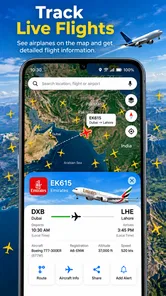
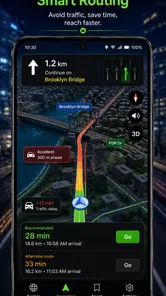
Analysis by Reviewed
I tend to judge a navigation app by how quickly it helps me answer a simple question: where am I, and what’s the sensible way to get where I’m going? GPS Satellite Maps: Live Earth puts satellite imagery and route guidance in the same place, which makes it appealing for both practical journeys and casual map exploring. It is a free Maps & Navigation app from Digital App Valley, and its mix of Earth views, navigation, and route tracking gives it a broader feel than a basic turn-by-turn tool.
What speed feels like in everyday use
On a familiar route, the useful kind of speed is less about flashy animation and more about getting a clear view or direction without fuss. Satellite imagery can take longer to make sense of than a simple street map, especially when I’m zooming around to inspect an unfamiliar area. I’d treat that view as a planning aid rather than expect it to replace a clean, quick map when I’m already driving and need to make a turn.
The app’s current version is 4.9.8, and it has an average rating of 3.8 from around 37,000 ratings. Those figures suggest a well-used app with a mixed reception, so I would try it on a short, familiar trip before relying on it for an important journey. Its 10 million-plus installs show that plenty of people have given it a try, but popularity alone does not tell me whether its particular mix suits my routine.
When a map gets a workout
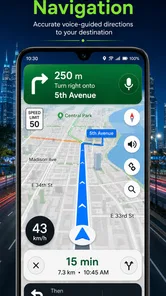
A useful way to test this kind of app is to switch between map views, search for a destination, and follow a route while travelling. Each task asks for something different: satellite imagery helps me orient myself visually, while a simpler street view is usually easier to scan quickly. If I’m planning at home, I can take time to look around; if I’m navigating a busy junction, I want to keep my attention on the road and let voice or clear turn prompts do the work.
One practical trade-off is that detailed imagery and constant map movement can be more demanding than checking a static map. I’d avoid leaving a bright satellite view open just for curiosity on a long outing, particularly if my phone is already low on power. Switching to a less visually busy view when I only need directions is a sensible habit, and it also makes labels and road shapes easier to pick out at a glance.
First Impressions
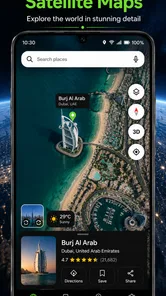
When I first downloaded GPS Satellite Maps: Live Earth, I was immediately impressed by its sleek and intuitive interface. The app opens up to a stunning view of the world, making me feel like I had the whole planet at my fingertips. Navigation through the app is smooth, with no annoying lag or glitches. It's like the app read my mind, knowing exactly what I needed and when.
Features That Stand Out
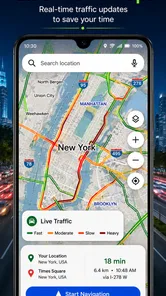
The real magic lies in the app’s features. One of the coolest things is the live satellite view. I mean, who doesn’t want to see their house from space? Not only is it fun, but it's incredibly useful for planning trips or just satisfying your curiosity about the world. The app also offers real-time traffic updates, which is a lifesaver when you're trying to avoid rush hour chaos. It even includes detailed street maps with step-by-step directions, whether you're driving, walking, or cycling.
More From Our News Desk

 Weather - By Xiaomi
Weather by Xiaomi Review: Clear at a Glance, Less Clear Up Close
Xiaomi’s weather app makes everyday forecasts quick to scan, but its calm surface can leave useful details and recovery paths harder to find than they should be.

 X
XX Under Pressure: Can It Recover When Posting Goes Wrong?
A resilience-focused review of X, examining setup, mistaken posts, interruptions, weak connections, and the gaps that matter when recovery needs to be dependable.

 Clash of Clans
Clash of Clans Is Won Between the Battles
Its raids are quick; its community is a long-term project of coordination, teaching, rivalry, and shared responsibility—with all the friction that entails.

 Android Auto
Android Auto Makes the Case for Quieter Car Software
The car interface is no longer judged by how much it can do, but by how quietly it helps. Android Auto shows what drivers now expect—and what still gets in the way.

 MobiOffice: Word, Sheets, PDF
MobiOffice: Transforming Mobile Productivity with Seamless Integration
MobiOffice: Word, Sheets, PDF is redefining mobile productivity with a surprising blend of functionality and innovation.

 EA SPORTS FC Soccer Mobile 26
EA SPORTS FC™ Mobile Soccer: Redefining Mobile Sports Gaming
Dive into EA SPORTS FC™ Mobile Soccer, where immersive gameplay and strategic depth transform mobile sports gaming.
Latest News


Another feature that caught my eye was the offline maps. I can’t stress enough how handy this is when you’re traveling in areas with spotty internet connection. Download the maps you need beforehand, and voila! You’re good to go without burning through your data plan.
Small habits that make trips easier
If I’m using satellite imagery to find a place, I like to check the broader area first and then zoom in only when I need a better sense of the surroundings. That can help me spot the approach to a destination without getting distracted by every detail on screen. Before leaving, I’d also search for the destination while I have a stable connection and make sure I can still make sense of the route later; offline maps are most useful when prepared ahead, not when I’m already in a dead zone.
For a real everyday example, imagine driving to a new café on the edge of town after work. I’d use the satellite view before setting off to understand the nearby streets, then rely on the route guidance while moving and check traffic before committing to the busiest roads. If I’m walking the final stretch, I’d stop somewhere safe to inspect the map rather than trying to study imagery while crossing streets. That small workflow makes the app’s different views more useful without asking them all to do the same job.
Who will get the most from it
This is a good fit for people who enjoy seeing a place from above as well as getting directions, and for travellers who want to prepare around uncertain connectivity. It can also be handy when a street address is hard to visualize and I want a broader sense of the surrounding area. By contrast, someone who only wants the fastest, least cluttered route screen may be happier with a conventional navigation app built around simple road maps and turn prompts.
Compared with the usual alternatives, the main appeal here is the combination of satellite-style exploration and navigation in one app. A dedicated route planner may feel more focused for daily commuting, while a general-purpose map app may offer a familiar place-search routine. I would choose this one when the visual overview matters, and keep another trusted option available if a critical trip depends on features I have not tested on this device or route.
Reliability and device considerations
GPS guidance depends on the phone’s ability to establish its location, and map use can feel less dependable when the surroundings or connection make it harder to orient yourself. I would give a route a quick check before setting off, keep the phone securely mounted, and avoid making changes while driving. If the map view stalls or the route no longer looks right, pausing somewhere safe and reopening the route is a calmer recovery plan than trying to troubleshoot on the move.
The app is free, rated for Everyone, and has in-app purchases listed at $2.99 per item. It supports devices running Android 7.0 or later. On an older or heavily used phone, I’d keep the screen uncluttered and close other demanding tasks if navigation feels sluggish; I would not assume satellite imagery will be as comfortable to use as a basic map on every device. The developer is Digital App Valley, and the app was released on February 21, 2018.
Making the choice fit your trip
One question I’d ask before installing it is whether I want a navigation tool first or a map I can explore before setting off. If my usual journey is a repeated commute, I value a familiar route display and quick decisions more than an overhead look at the neighborhood. If I’m visiting an unfamiliar part of town, satellite imagery can help me understand the setting around an address, but I’d still check the route in advance rather than assume the visual view alone will answer every practical question.
For a weekend trip, I’d use the app in two stages: plan while stationary, then simplify what I look at once I’m moving. That distinction matters because the most useful view for choosing an approach is not necessarily the best one for following directions. Before leaving, I’d also make sure the destination is correct and that I know where I can stop safely if I need to change plans. These small checks reduce the temptation to pinch, zoom, or search at the wrong moment.
Offline preparation is another detail worth treating carefully. Having offline maps available can be valuable where connectivity is uncertain, but I would prepare while I still have a reliable connection and verify that the map area I need is ready before travelling. I would not plan around an assumption that every online element, such as changing traffic conditions, will behave the same way without a connection. For remote travel, I’d keep a second navigation option or a simple backup plan rather than making one phone app the only source of direction.
How it fits alongside other map apps
The choice between this app and a conventional map service comes down to what I want from the screen. A road-focused alternative is often easier to read quickly because it emphasizes routes and labels instead of visual detail. A specialist navigation tool may suit someone who mainly wants a consistent commute or detailed route management. This app’s more distinctive role is letting me use satellite-style context alongside navigation, which can be helpful when I’m trying to picture how a destination sits within its surroundings.
I would not treat that combination as a reason to uninstall every other map app. For a time-sensitive appointment, I’d favor the tool I already know and have tested on similar trips. For choosing between several unfamiliar destinations or getting a feel for an area before visiting, I’d give this one a closer look. Keeping the roles separate is a practical way to benefit from its visual angle without expecting it to outperform every alternative at every task.
What to expect from performance
Speed will depend on what I’m asking the phone to show. Moving across satellite imagery and changing zoom levels is a more visually involved task than following a plain route, so I’d expect the map to feel busier during exploration. If the app seems slow, I’d first simplify the view, give the map a moment to settle, and avoid repeatedly changing destinations while it is responding. That is a more useful test than judging the whole app from one demanding screen or a weak connection.
For longer journeys, I’d also think about battery and attention rather than just loading time. A screen left on continuously can be a practical drain, and a detailed view can invite more looking than a basic direction display. I’d set the route before departure, use a secure mount, and keep the phone connected to power when that is practical. Most importantly, I’d stop safely before searching or inspecting the map; no visual convenience is worth taking attention away from driving.
Someone considering the app may also wonder whether it suits an older phone. Its minimum support is Android 7.0, but meeting that requirement does not guarantee the same experience on every device. If a phone is already short on storage, power, or responsiveness, I’d be cautious about relying on detailed mapping during a long trip. Trying it at home and on a short local journey is a sensible way to see how it behaves before making it part of a travel routine.
Personal Experience
I took the app for a spin on a recent road trip, and it was like having a co-pilot who never needed to stop for snacks. The accuracy of the GPS tracking was spot-on, and I never once felt lost. The real-time updates kept me out of traffic jams and even suggested some scenic detours that made the trip even more enjoyable.
What I also appreciated was the app’s ability to search for places of interest. Whether I was looking for a nearby restaurant or a gas station, it had me covered. It even suggested popular tourist spots I might want to check out, which was a nice touch.
Who should pass, and when I would rely on it
I’d skip this app if I wanted a no-frills navigator and had no interest in viewing places from above. The extra visual context is only useful when I actually need to understand an area; otherwise, it can add complexity to a task that a plain route map handles well. I’d also avoid making it my sole option for an unfamiliar, high-stakes journey until I had tested it on my own phone and understood how its route guidance feels.
Its Everyone content rating makes it broadly suitable from a content standpoint, while the optional in-app purchases mean I’d check the purchase prompts carefully if cost matters to me. The app itself is free to download, so I can try its core approach without paying upfront. With 745 written reviews alongside its larger rating base, there is some user feedback to browse, though I’d focus on comments that match my device and use case rather than treating any single opinion as decisive.
For an ordinary outing, my preferred routine would be to explore the destination before leaving, decide whether the satellite view genuinely helps, and then keep the navigation screen as simple as possible while travelling. If I’m walking, I’d pull over or stop away from traffic before checking details. If I’m driving, I’d set up the route while parked and let the guidance do its job. That division between planning and movement is where the app feels most useful to me.
Final Thoughts
All in all, GPS Satellite Maps: Live Earth is a solid choice for anyone who finds themselves on the go. It's not just about finding your way—it's about exploring the world with confidence. Whether you’re a frequent traveler or just someone who enjoys a weekend adventure, this app is a must-have. It's like having a travel buddy who never gets tired or asks for directions. So, if you haven’t tried it yet, what are you waiting for? Go ahead, give it a download, and let the adventures begin!
GPS Satellite Maps: Live Earth Frequently Asked Questions
Can I use GPS Satellite Maps: Live Earth on an iPhone or iPad?
GPS Satellite Maps: Live Earth is a maps and navigation app, but device compatibility matters before you download. Its listed minimum operating-system requirement is Android 7.0, so check the requirements shown for your device and platform before installing. If you are using an iPhone or iPad, confirm that the version available for your device supports it rather than assuming Android compatibility carries over.
Does GPS Satellite Maps: Live Earth need an internet connection to work?
The app is designed around satellite maps, navigation, and route tracking, which can involve different needs during map browsing and a journey. Whether you can rely on it without a connection depends on the maps and functions available on your device. If you expect to travel through areas with limited service, check the app’s offline options and prepare before setting out.
Is GPS Satellite Maps: Live Earth suitable for children?
GPS Satellite Maps: Live Earth has an Everyone content rating, making its stated age classification suitable for a general audience. It is a maps and navigation app, so its main purpose is exploring locations and following routes rather than providing child-focused entertainment. Parents can still review the app and any optional purchases with children before allowing them to download or use it.
Is GPS Satellite Maps: Live Earth free to download, and what should I know about its cost?
GPS Satellite Maps: Live Earth is free to download, so you can try the app without paying upfront. It also offers in-app purchases, with items priced at $2.99 each. The app is intended for maps and navigation, and you can decide whether its basic experience meets your needs before choosing to make any optional purchases.
What is GPS Satellite Maps: Live Earth, and who develops it?
GPS Satellite Maps: Live Earth is a maps and navigation app developed by Digital App Valley. Its focus is satellite maps for viewing Earth, navigation, and route tracking, making it suited to people who want map-based exploration and help planning or following a journey. It has an Everyone content rating, so its stated age classification is suitable for a general audience.
Pros
- High-resolution satellite imagery
- Real-time GPS tracking feature
- User-friendly interface
- Offline maps available
- Regular updates with new features
Cons
- Consumes significant battery power
- Requires internet for live updates
- High data usage for satellite view
- Ads can be intrusive
- Limited customization options