Genloop: AI Video Generator
- 3.00
- 1.8
- Installs
- 50.00K
- Price
- Free

Screenshots


Analysis by Reviewed
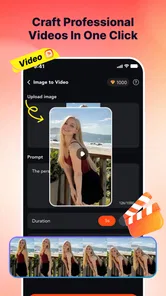
I approached Genloop as a small, focused lifestyle app for turning still images into AI-generated videos. Its idea is easy to understand: start with a photo, portrait, selfie, or piece of artwork, then use the app to give that image movement. That makes it attractive for anyone who wants a more lively social post without learning a full video editor.
My overall impression is mixed. The concept is approachable, especially for people who find traditional editing timelines intimidating, but the experience needs patience. Genloop is not a complete replacement for a camera app, animation studio, or professional editor. It is better viewed as a quick experiment for transforming one visual into something shareable. The low average rating of 1.8 from around fifty ratings also suggests that expectations should be kept realistic before spending money inside the app.
How Genloop feels to use in everyday situations
The first thing I noticed is that the app’s appeal depends heavily on the quality and composition of the image you choose. A clear portrait with a simple background gives the AI a much easier starting point than a crowded group photo, a dark snapshot, or artwork with many overlapping details. This is an important practical distinction: the app may be simple to open, but getting a convincing result still requires some judgment from the user.
For example, imagine taking a favorite holiday photo and wanting to post it as a short story update. With a conventional editor, I would usually need to add a zoom, pan, transition, music track, and perhaps animated text manually. Genloop is more appealing when I want to skip that timeline work and see whether an automated motion treatment can make the image feel less static. The trade-off is control. I may get an interesting result quickly, but I cannot approach the process with the same precision as a dedicated editor.
The app sits in the lifestyle category rather than presenting itself as a professional production tool. That positioning makes sense. I would recommend trying it for casual creative posts, profile experiments, digital greetings, or animated versions of personal artwork. I would not choose it for a client project, a carefully timed advertisement, or anything where a specific camera movement must be repeated exactly.
Readability and navigation for different users
Genloop’s basic promise is readable without technical knowledge. Someone who knows how to select a picture and wait for an automated result can understand the central workflow. That is useful for people who are new to video creation, including older relatives who may feel lost when faced with multiple editing tracks and dozens of controls.
At the same time, simplicity should not be confused with complete clarity. An AI creation process can leave users wondering what will happen after they choose an image, how long processing will take, or why one result looks different from another. When an app hides much of the creative process behind automation, visible guidance becomes especially important. I found that the best way to approach Genloop is to begin with an image that is easy to evaluate, rather than using a precious original immediately.
More From Our News Desk

Weather by Xiaomi Review: Clear at a Glance, Less Clear Up Close

X Under Pressure: Can It Recover When Posting Goes Wrong?

Clash of Clans Is Won Between the Battles

Android Auto Makes the Case for Quieter Car Software

MobiOffice: Transforming Mobile Productivity with Seamless Integration

EA SPORTS FC™ Mobile Soccer: Redefining Mobile Sports Gaming
That workflow also helps users who have difficulty remembering complicated sequences. Instead of learning a large set of gestures or editing commands, they can treat each attempt as a small visual test: choose an image, review the result, and decide whether it is worth keeping. This reduces mental load, although it can become frustrating if the app does not make the next step obvious.
People with reading difficulties may appreciate a short, image-led process more than a text-heavy editor. However, anyone who relies on large text, strong contrast, screen magnification, or a screen reader should inspect the interface personally before committing to regular use. I would not assume that an uncluttered design automatically means every label and control works equally well with assistive technology.
Motor, visual, and sensory considerations
The strongest accessibility advantage here is the reduced need for detailed timeline manipulation. Traditional mobile video editors often require dragging small handles, aligning clips, trimming at exact points, and repeatedly tapping through layered menus. An image-to-video workflow can be less demanding for users with limited fine-motor control because the creative decision is concentrated around selecting source material rather than adjusting many tiny elements.
That advantage has limits. If the app requires repeated attempts to obtain a pleasing animation, the overall process may still involve many taps and waits. Users with hand tremors or fatigue may prefer preparing a small folder of suitable images first, so they are not repeatedly navigating through a large photo library. I also suggest avoiding a workflow that depends on rapid gestures or precise tapping if those actions are uncomfortable.
For users with visual sensitivities, animated output deserves careful consideration. Movement can be engaging, but unexpected motion may be distracting or unpleasant. I would preview generated clips before sharing them, particularly when the source includes faces, high-contrast artwork, or busy patterns. A still image that feels calm can become visually intense once motion is introduced.
Deaf and hard-of-hearing users are not automatically excluded from the core visual idea, since the source material and generated movement can be judged visually. Still, the usefulness of any finished clip depends on how it is shared. If the intended post relies on sound, captions or a text explanation may be necessary. Genloop is most naturally suited to visual-first content, not communication that depends on spoken narration.
For people with cognitive disabilities, the app may be easier than a conventional editor because there are fewer creative decisions at the start. I would still recommend a predictable routine: use one image, make one test, save or discard the result, and only then try another. That prevents the process from turning into a confusing series of unexplained variations.
Situational access: when the simple approach helps
Genloop makes the most sense when I have a few minutes and a clear visual goal. If I am waiting for a train and want to turn a sketch into a quick animated post, an automated tool is more practical than opening a full desktop-style editor. The same applies when I want to send a playful birthday image to a friend who does not need polished production.
It may also help users who cannot comfortably perform extended editing sessions. A person with limited energy could prepare an image in advance and make one short creation attempt instead of building a project from several clips. That does not guarantee a perfect result, but it changes the task from a long technical session into a smaller experiment.
Another useful situation is collaborative creation. A family member who is comfortable choosing images can prepare the source material, while another person decides which visual result feels appropriate. Because the starting point is a photo or artwork rather than a complicated project file, the division of tasks can be easier to explain.
There is also a privacy-related practical choice to make. Portraits and selfies are personal images, so I would avoid testing the app with sensitive photographs until I was comfortable with how the service handles them. I am not treating this as proof of a problem; it is simply sensible behavior whenever an app transforms personal media. For a first trial, I would use a non-sensitive image that I would not mind replacing.
Users with limited data, older phones, or unstable connections should plan around the possibility that AI processing may not feel instant. The minimum operating system is Android 7.0, which makes the compatibility requirement relatively broad, but compatibility alone does not tell me how smoothly every device will handle image processing. If the phone is older, I would test one modest image before preparing a larger batch.
Where Genloop is more convenient than usual alternatives
Compared with a standard photo editor, Genloop offers a more direct path from a still image to animated content. A photo editor is excellent for cropping, correcting color, adding text, or applying a filter, but it normally does not provide the same image-to-video focus. If my only goal is to make a portrait feel alive, Genloop can be less intimidating.
Compared with a full mobile video editor, the app is likely to feel lighter in concept. A timeline editor gives me more authority over timing, layers, audio, captions, transitions, and export decisions. That makes the alternative better for structured storytelling or professional work. Genloop is preferable when I value experimentation over exact control.
Compared with a slideshow maker, the distinction is also important. A slideshow usually moves between several images, while Genloop’s central appeal is transforming an individual visual. Someone creating a memorial montage, travel recap, or product sequence may be better served by a slideshow tool. Someone trying to animate one illustration or selfie may find Genloop more relevant.
The most interesting trade-off is effort versus predictability. Genloop can reduce the number of editing decisions, which benefits beginners and users with limited dexterity or energy. The price of that convenience is that the creative process becomes less transparent. I would choose it when a surprising result is acceptable, and choose a conventional editor when the final appearance matters more than speed.
Remaining barriers before making it a regular tool
The biggest barrier is uncertainty around consistency. AI-generated motion can be appealing when it respects the subject, but a result that distorts a face, changes the character of artwork, or introduces distracting movement is not useful simply because it was produced quickly. I would judge Genloop by the percentage of results that are genuinely shareable, not by the novelty of the first successful attempt.
Cost is another consideration. The app is free to install, but its in-app purchases range from $1.99 to $99.99 per item. That is a wide span, so I would not purchase anything until I understood exactly what a paid item unlocks and whether it fits my intended use. Casual users should be especially careful: a one-time experiment can become expensive if the payment choices are not reviewed slowly.
The mature 17+ content rating also matters. I would not hand the app to a child simply because the workflow looks easy. Parents and guardians should treat the age rating seriously and supervise access where appropriate. The rating is also a reminder that a visually simple creative tool is not automatically suitable for every household.
The current version is 1.0.1, which makes me approach it as a relatively early product rather than a mature editing suite. That does not make it unusable, but it does reinforce my advice to keep original images backed up and to test the workflow before relying on it for an important post. The developer is listed as Developer of Vegas, and the app has passed fifty thousand installs, so there is clear interest, but popularity alone does not resolve the concerns raised by the low average rating.
Navigation can become a barrier if the app uses controls that are too small, labels that are vague, or feedback that is easy to miss during processing. I would particularly watch for this if I were using magnification, voice access, one-handed operation, or a device with a small screen. A tool can be conceptually simple and still be physically difficult to operate.
Who should try it, and who should skip it
I think Genloop is worth trying for casual creators who already have suitable photos or artwork and want a quick way to explore motion without learning a full editor. It is also a reasonable experiment for people who find timelines, layers, and precise trimming overwhelming. Portrait enthusiasts, digital artists, and users who enjoy testing unusual visual effects are the most natural audience.
I would skip it if I need dependable professional output, detailed accessibility controls, a predictable animation path, or a complete editing workspace. I would also look elsewhere if my project requires several clips, carefully synchronized audio, subtitles, or exact brand styling. Those needs belong to a more established video editor.
Before installing, I would decide what success means. If success means “make one interesting animated image for a friend,” the app’s focused design may be enough. If success means “produce a polished campaign with repeatable results,” the same simplicity becomes a weakness. This distinction can prevent disappointment and reduce the temptation to pay for features before understanding the basic workflow.
My inclusive verdict
Genloop has a friendly central idea: give a still image a chance to become a video without asking the user to master traditional editing. In my experience, that makes it more approachable than a feature-packed editor for small, visual tasks. It can support users who benefit from fewer controls, shorter creative sessions, and an image-first workflow.
But inclusive design is about more than reducing buttons. Users still need clear feedback, comfortable controls, understandable payment choices, and a way to judge whether generated movement is suitable for their visual or sensory needs. Genloop’s early version, mature age rating, broad purchase range, and low average rating mean I would approach it cautiously rather than recommend it unreservedly.
My advice is to start with a non-sensitive image, make a small test, preview the result carefully, and avoid purchasing anything until the free experience makes sense. If you want playful motion from a portrait or artwork and can accept some unpredictability, it may be a worthwhile creative diversion. If you need control, consistency, or strong confidence that the interface will suit a particular access need, a conventional editor with clearly documented controls is the safer choice.
Genloop: AI Video Generator Frequently Asked Questions
What devices and operating systems can run Genloop: AI Video Generator?
Genloop: AI Video Generator is a mobile app in the Lifestyle category, so it is intended for use on a compatible phone or tablet rather than as desktop video software. Its minimum operating-system requirement is Android 7.0. Before downloading, check that your device meets this requirement and has enough free storage for the app and any videos you create.
Who makes Genloop: AI Video Generator, and is it widely used?
Genloop: AI Video Generator is developed by Developer of Vegas. It has been installed over 50,000 times, giving prospective users a sense of its reach, though popularity alone does not determine whether it will suit your needs. Its average rating is 1.8 from 51 ratings, so it is sensible to read available user feedback and consider what matters most to you before installing.
What is Genloop: AI Video Generator, and what can it do?
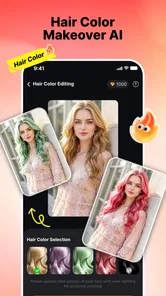
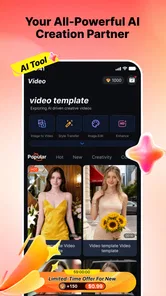
Genloop: AI Video Generator is an AI-powered creative app designed to help users produce short videos from written prompts, images, or other provided content. It can be useful for social media posts, visual experiments, presentations, and marketing ideas. The app’s summary highlights creating AI videos from photos, portraits, selfies, and artwork. The exact tools may vary by version, but users should generally expect automated generation, style options, and editing or customization features rather than a complete replacement for professional video software.
Is Genloop: AI Video Generator free to download and use?
The app is free to download, but some features can require in-app purchases. AI video generation often consumes considerable processing resources, so free users may face limits on the number of creations, video length, resolution, export options, or watermark removal. In-app purchases range from $1.99 to $99.99 per item. Before generating multiple videos, review the current pricing and any purchase terms shown in the app.
How good are the videos generated by Genloop?
The quality of results depends heavily on the prompt, source images, selected style, and the complexity of the requested scene. Genloop can produce imaginative and visually appealing clips, but AI-generated videos may still include inconsistent details, unnatural movement, distorted objects, or inaccurate interpretations of instructions. For the best outcome, use clear prompts, describe motion and composition specifically, and be prepared to regenerate or refine the result.
Pros
- Creates short AI videos from simple text prompts.
- Offers creative styles for social media content.
- Easy interface suitable for beginners.
- Can speed up brainstorming and visual prototyping.
- Useful for generating varied concepts quickly.
Cons
- Results may not always match the prompt accurately.
- Video quality can vary between generations.
- Advanced features may require a paid subscription.
- Rendering times can increase during busy periods.
- AI-generated visuals may include odd details or artifacts.