Motionly: Image to Video AI
- 4.00
- 4.3
- Installs
- 50.00K
- Price
- Free

Screenshots
Analysis by Reviewed
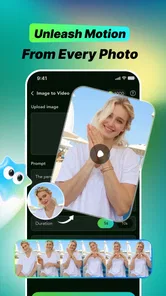
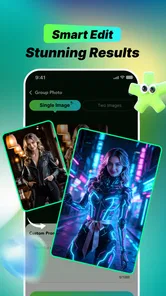
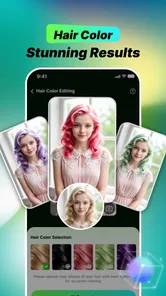
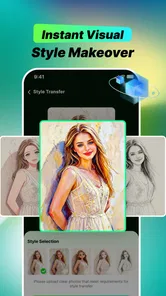
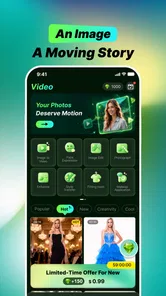
Motionly: Image to Video AI is the kind of entertainment app I would open when a normal photo feels a little too static. It takes an image and turns it into a short AI-style video using creative templates and effects, which makes it useful for quick social posts, playful memories, and visual experiments. I found the appeal easy to understand: instead of learning a full video editor, I can start with one picture and see how a motion treatment changes its mood.
What makes the experience worth discussing is not only the visual result. The app depends heavily on a smooth connection during the moments when an image is processed, so network quality becomes part of the creative workflow. A good result can feel almost instant and satisfying, while a weak connection can interrupt the most important step. My overall impression is positive, but I would recommend it mainly to people who want fast, template-led creativity rather than detailed control over every frame.
How the app feels when the connection is doing the work
Motionly is published by GeorgeGun and sits in the entertainment category. It is free to install, with optional in-app purchases ranging from $1.99 to $99.99 per item. That combination makes the first experiment easy to justify, but it also means I would pay attention to what is available before becoming dependent on a particular effect or workflow.
The central process is straightforward. I choose a photo, select a creative direction, and wait for the app to transform the still image into moving content. The simplicity is a strength because the app does not ask me to assemble a timeline, trim multiple clips, or understand complicated editing controls before seeing a result. For a quick post, that is much less intimidating than opening a traditional mobile editor.
The network matters most after the creative choice has been made. Selecting a template may feel like browsing, but the real wait comes when the image is being turned into a video. With a reliable connection, I can treat this as a short creative loop: choose, generate, inspect, and try again. When connectivity is unstable, that loop becomes less predictable, and repeated experiments can lose their momentum.
I would not describe the app as a replacement for a complete video editor. Its value is closer to a visual shortcut. It helps me discover a striking treatment without manually animating a photograph. If I need precise timing, layered audio work, captions placed at exact moments, or detailed control over movement, a conventional editor remains the better tool.
The app has a 4.3 average from around 40 ratings, and it has passed 50K installs. Those figures suggest a modest but real audience rather than a huge mainstream platform. I see that as useful context: Motionly feels like a focused experiment for people curious about AI-assisted image animation, not an all-purpose production suite that should handle every kind of project.
More From Our News Desk

 Gmail
GmailGmail in a Busy Inbox: Who Benefits Most?
From first account to crowded workday, Gmail earns its place through dependable search and flexible sorting—but its best fit depends on how much inbox maintenance you can tolerate.

 Prime Video
Switching to Prime Video: What Changes in Your Viewing Routine
Prime Video can make a compelling second home for streaming, but switching means learning a different catalog, rental layer, and route from browsing to playback.

 Universal TV Remote Control
Universal TV Remote Control Works Best as a Reliable Backup
A phone remote earns its place through quick setup and reliable habits. Here is how to get more from Universal TV Remote Control—and where its limits show.

 Weather - By Xiaomi
Weather by Xiaomi Review: Clear at a Glance, Less Clear Up Close
Xiaomi’s weather app makes everyday forecasts quick to scan, but its calm surface can leave useful details and recovery paths harder to find than they should be.

 X
XX Under Pressure: Can It Recover When Posting Goes Wrong?
A resilience-focused review of X, examining setup, mistaken posts, interruptions, weak connections, and the gaps that matter when recovery needs to be dependable.

 Clash of Clans
Clash of Clans Is Won Between the Battles
Its raids are quick; its community is a long-term project of coordination, teaching, rivalry, and shared responsibility—with all the friction that entails.
Latest News



Why mobile context changes the experience
The strongest use case is a short session with a clear goal. Imagine taking a portrait from a weekend outing and wanting something more lively to share in a private chat. I can open the app, use that single image, test a suitable effect, and decide whether the motion adds anything. This is more convenient than transferring the photo to a desktop editor simply to create a small animated post.
It also works well for people who keep many images on their phone but rarely edit them. A still photo of a pet, a meal, a street scene, or a family moment can become a quick visual variation. The important word is variation: the generated video should be treated as an interpretation of the image, not automatically as a faithful record of what happened.
On a phone, I would prepare the source image before opening the generation step. A clear subject, enough surrounding space, and a simple composition give the effect more room to work with. A crowded photo can produce a less convincing result because the app has to infer motion from too many competing details. This preparation is a small habit, but it saves time and reduces the temptation to blame every weak result on the template.
Another practical tip is to keep the first session experimental. Rather than selecting a favorite photo immediately, I would begin with an image that is easy to replace. AI animation can change the feeling of a face, object, or background in ways that are visually interesting but not always appropriate. Testing first helps me understand the character of an effect before applying it to something important.
The mature 17+ content rating is also relevant when deciding who should use it. I would not hand the app to a younger child simply because the interface appears approachable. Parents should consider the rating and the presence of paid items before allowing independent use, especially if the device has payment methods enabled.
Where waiting, retrying, and recovery become part of editing
The most noticeable friction is the dependence on successful processing. If the connection slows down while a video is being created, I may be left wondering whether the request is still working or whether I should try again. That uncertainty is more annoying than a normal editing delay because the app’s main feature is concentrated in one generation step.
My preferred recovery approach would be conservative: wait briefly, avoid tapping repeatedly, and check whether the result appears before submitting the same image again. Repeated attempts can make the workflow confusing, especially when I am testing several effects. If a generation fails, I would return to a simpler source image and try once more rather than immediately changing every setting.
This is one of the app’s less obvious trade-offs. A template-driven tool feels fast when it succeeds, but it offers less control over troubleshooting than a local editor. In a traditional editor, I can often continue cutting or arranging footage even if one feature is unavailable. Here, the transformation itself is the central event, so a network interruption affects the whole purpose of the session.
I would also avoid starting an important project moments before I need to share it. Motionly is better suited to casual creation than to a deadline-sensitive workflow. If I need a guaranteed result for a presentation, scheduled post, or client delivery, I would prepare an alternative using an editor whose basic timeline work does not depend on the same generation moment.
After a successful result, I would inspect the video before assuming it is ready to publish. Look at faces, hands, text inside the image, and the edges of important objects. AI motion can be attractive overall while producing an odd detail that becomes obvious once the clip loops. This review step is especially important for personal photos, where an amusing visual distortion may be acceptable in a private chat but distracting in a public post.
Using it without wasting mobile data
Because the app turns images into videos, I would use it thoughtfully on a mobile connection. I would avoid generating several versions of a large photo while commuting unless I am comfortable with the data use and the possibility of interruptions. A Wi-Fi connection is the sensible choice for longer experiments, particularly when I want to compare multiple templates rather than create one quick result.
Image selection can help here. Before uploading or processing a photo, I would choose a version that is visually clear without being unnecessarily large. The goal is not to damage the source, but to avoid sending a heavy file when a more practical copy would produce the same creative test. This is a useful habit for anyone using an AI media app away from home.
I would also separate browsing from generating. Spend a moment deciding what kind of mood I want, then commit to one or two promising options instead of tapping every effect. That approach saves connection time and makes the results easier to compare. It also keeps the app from becoming a cycle of random requests where I forget which template produced which video.
For privacy-conscious users, the right mindset is to begin with low-stakes images. Use a landscape, object, or disposable creative test before choosing a sensitive portrait or personal document. I am not treating that as a claim about the app’s policies; it is simply a sensible rule whenever a service needs an image to create an AI result. Screenshots containing addresses, tickets, private messages, or other identifying details are poor starting material for experimentation.
The free entry point helps with this cautious approach. I can decide whether the visual style suits me before considering any purchase. Since individual in-app items can cost from $1.99 up to $99.99, I would read each purchase screen carefully and avoid assuming that every attractive effect belongs to the free experience. The app is easiest to recommend when users treat paid options as optional enhancements rather than necessary steps.
Who will enjoy Motionly, and who should choose another tool?
I think Motionly is a good fit for casual creators, social users, and anyone who wants to make a still image feel more dynamic without studying video editing. It is particularly appealing when the desired result is short, expressive, and template-shaped. If I want a quick reaction clip for friends or a playful variation of a travel photo, the reduced number of decisions is a genuine advantage.
It may also suit beginners who become frustrated by traditional editing apps. A full editor can offer impressive control, but that control often comes with a crowded interface and a longer learning curve. Motionly narrows the task to choosing an image and a visual treatment. That makes it easier to get a result, although the trade-off is that I have fewer ways to correct or refine what the AI creates.
I would skip it when consistency matters more than novelty. A business account that needs identical branding across many videos may prefer a template system with fixed layouts, editable text, and predictable timing. Likewise, a creator who already enjoys keyframes, masking, color correction, and audio mixing will probably find the app too limited for serious production.
It is also not my first choice for users with unreliable connectivity who need to work while traveling. The app’s central transformation is tied to the moment of processing, so an unstable connection can turn a five-minute idea into repeated waiting. A conventional editor with locally available tools is a better companion for offline-style travel workflows, provided the user already has suitable media and editing resources.
Compared with social platforms that add automatic effects directly while posting, Motionly is more focused on transforming an existing photo before sharing it. Compared with a standard editor, it is quicker to approach but less precise. Compared with manually animated photo apps, it aims for convenience and surprise rather than exact movement design. Those differences make the choice fairly clear: use Motionly when the creative spark matters more than detailed authorship.
Version, compatibility, and the practical decision
The current version is 1.0.2 and requires Android 7.0 or later. That gives it a broad enough starting point for many Android users, but I would still check the device before planning a session, especially on older phones where image processing, storage, or multitasking may feel less comfortable. A supported operating system does not automatically mean every device will offer the same smooth experience.
I would install it with realistic expectations. The app is free to start, but the presence of paid items means the complete creative range may involve spending. I would first test the basic workflow, see whether the generated motion matches my taste, and only then decide whether a purchase is worthwhile. If I mainly want one occasional animated photo, paying for extras may not make sense.
The most useful workflow I found is deliberate rather than repetitive: choose a strong image, decide on the intended mood, use a stable connection, generate one version, inspect the details, and save or share only after checking the result. This keeps the app from becoming a slot machine of effects. It also makes the network dependency less frustrating because each request has a clear purpose.
My connectivity verdict is simple: Motionly is enjoyable when the connection stays out of the way, but connectivity is not a minor background detail here. It shapes how many ideas I can test, how confidently I can use the app away from home, and whether the experience feels playful or interrupted. I would recommend Wi-Fi for serious experimenting and a patient approach for any failed generation.
In the end, I like Motionly: Image to Video AI as a quick creative tool, not as a complete editing environment. It gives ordinary photos a chance to become more expressive with very little setup, and that makes it fun to recommend to a friend who wants fast results. I would just pair that recommendation with three cautions: inspect the output, watch the purchase choices, and do not depend on it for an urgent project or an unreliable connection.
Motionly: Image to Video AI Frequently Asked Questions
Is Motionly: Image to Video AI suitable for users under 17?
Motionly is an entertainment app with a Mature 17+ age rating, so it is intended for adults rather than younger users. If you are choosing an app for a teenager, consider that rating before downloading and review the app together where appropriate. The rating is a useful starting point for deciding whether its content and features fit the intended user.
Will Motionly work on my Android device?
Motionly: Image to Video AI requires Android 7.0 or later. Before downloading, check your device’s Android version in its settings; if it meets that requirement, the app should be compatible at the operating-system level. The app is free to download, and its current version is 1.0.2. Compatibility can still depend on your device and the version available through your app store.
What is Motionly: Image to Video AI, and what can it do?
Motionly: Image to Video AI is designed to transform still images into short animated videos using artificial intelligence. After selecting an image, you can typically apply movement effects, camera-style motion, transitions, or creative animation presets to make the picture feel more dynamic. It can be useful for social media posts, presentations, digital memories, and experimenting with AI-generated visual content. Its focus is on turning photos into videos with creative templates and effects.
How do I create a video with Motionly: Image to Video AI?
The usual workflow is straightforward: import a photo from your device or choose an available image, select an animation or motion style, and let the app process the result. Depending on the version, you may also be able to adjust the duration, aspect ratio, intensity, or other visual settings before exporting. Processing time can vary according to image resolution, effect complexity, and your internet connection.
Is Motionly: Image to Video AI free to download and use?
The application is free to download, but some features may require in-app purchases. These purchases range from $1.99 to $99.99 per item, so check the price shown in the app before confirming a purchase. Paid options may include access to extra tools or features, depending on what Motionly offers in its current version. You can start without paying to download the app, but consider potential costs before using premium features.
Pros
- Turns still images into engaging short videos with minimal effort.
- Offers creative motion effects suitable for social media content.
- Simple interface makes the editing process accessible to beginners.
- Can help refresh old photos with animated movement and visual effects.
- Useful for creating quick promotional or personal video concepts.
Cons
- AI results may look unnatural when subjects or backgrounds are complex.
- Some features or exports may require a subscription or in-app purchase.
- Processing quality and speed can vary depending on the source image.
- Generated videos may have limited customization compared with full editors.
- Uploading photos may raise privacy concerns for users handling sensitive images.