Bolt for Tesla - Tasker Plugin
- 27.00
- 4.8
- Installs
- 5.00K
- Price
- Free

Screenshots
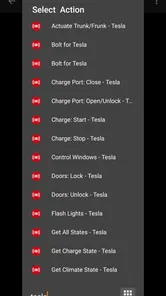
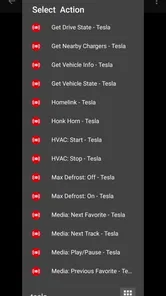
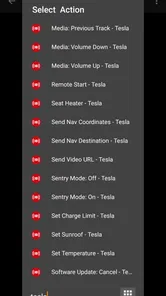
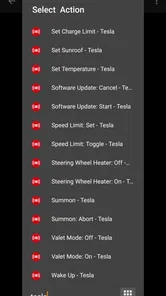
Analysis by Reviewed
What makes a Tesla routine feel effortless is often the work you do before you leave: deciding when an action should run, what should trigger it, and what you will do if the phone or car does not respond as expected. I see Bolt for Tesla - Tasker Plugin as a way to join Tesla actions to Android automation, not as a substitute for the car’s usual controls. It is an Auto & Vehicles app from Crazydog for people who already use tools such as Tasker, Automate, or MacroDroid. The real appeal is fitting a car action into a routine you have designed yourself; the trade-off is having to build and maintain that routine.
Before you build a connected routine
The most useful first decision is not which action to automate, but what should happen if it does not run. A routine that prepares the car before a flexible departure can be convenient; a routine that you expect to work at an exact moment is a poor place to test an unfamiliar setup. I would choose an action that is easy to check and not time-critical, then watch how the phone, automation app, and connected service behave in ordinary conditions.
This also helps answer a practical question: do you need a separate automation layer at all? If you open the Tesla controls only now and then, the familiar manual route may take less effort than creating triggers and checking them later. If a car action is part of your repeated morning or arrival routine, the plugin has a clearer purpose because it can connect that action to automation habits you already use.
Where connectivity shapes the experience
Automations involving a connected car depend on communication between your phone, the automation app, and the Tesla service. That matters most when a routine is meant to run at a precise moment: a delayed connection can make an action less useful, even if the automation itself is configured correctly. I would treat it as a convenience layer, not as something to rely on for an urgent task.
Everyday routines, not magic
A practical use is building a routine around a predictable departure: use a time or location trigger in your automation app, then arrange a car action that suits your schedule. The useful part is reducing repeated steps on mornings when you are carrying bags or trying to leave promptly. A sensible tip is to begin with one low-stakes routine and test it while you are nearby, rather than creating several automations before you know how reliably your setup behaves.
The original appeal remains simple: Bolt for Tesla - Tasker Plugin gives Android users a way to connect Tesla actions with the automation habits they already have. It is not automatically the best choice for every driver. If you only occasionally need to lock the car or adjust a setting, opening the usual Tesla controls may be quicker than maintaining a custom workflow. If you enjoy tailoring routines, the plugin can make those repeated actions feel more personal.
Making a routine useful in real life
Think about a weekday when you leave at roughly the same time but do not follow an identical schedule. A fixed-time trigger may suit a regular commute, while a location-based trigger may be more appropriate when your departure varies. Neither is automatically smarter: the right choice depends on whether you want an action tied to the clock or to where your phone is. I would avoid stacking both kinds of conditions at the start, since a routine that does not run can be harder to diagnose when several rules are involved.
More From Our News Desk

 Gmail
Gmail in a Busy Inbox: Who Benefits Most?
From first account to crowded workday, Gmail earns its place through dependable search and flexible sorting—but its best fit depends on how much inbox maintenance you can tolerate.

 Prime Video
Switching to Prime Video: What Changes in Your Viewing Routine
Prime Video can make a compelling second home for streaming, but switching means learning a different catalog, rental layer, and route from browsing to playback.

 Universal TV Remote Control
 Works Best as a Reliable Backup
A phone remote earns its place through quick setup and reliable habits. Here is how to get more from Universal TV Remote Control—and where its limits show.

 Weather - By Xiaomi
Weather by Xiaomi Review: Clear at a Glance, Less Clear Up Close
Xiaomi’s weather app makes everyday forecasts quick to scan, but its calm surface can leave useful details and recovery paths harder to find than they should be.

 X
X Under Pressure: Can It Recover When Posting Goes Wrong?
A resilience-focused review of X, examining setup, mistaken posts, interruptions, weak connections, and the gaps that matter when recovery needs to be dependable.

 Clash of Clans
 Is Won Between the Battles
Its raids are quick; its community is a long-term project of coordination, teaching, rivalry, and shared responsibility—with all the friction that entails.
Latest News



There is a less obvious benefit to keeping the automation small: it is easier to remember why it exists. A single, clearly named routine is simpler to pause, test, or change than a set of overlapping profiles that might issue similar commands. Before adding a second workflow, I would let the first one run through several ordinary days and note whether its trigger matches the moment you actually want. That is a practical way to decide whether automation is saving effort rather than merely moving the effort into setup.
What happens when a routine misses
Automation can fail for reasons outside the plugin itself: a phone may not meet a trigger condition, an automation profile may be paused, or the connected service may not respond in time. When something does not happen, I would first check the trigger and the automation app’s own run history, then try the same car action manually. That separates a misconfigured routine from a connection delay and avoids assuming that repeating the command is always harmless.
It is also worth keeping safety and timing in mind. I would not build a routine that must work at an exact second, or one that leaves no room to verify the result. A useful workflow is to automate convenience actions while keeping a familiar manual route available. This small fallback makes experimentation less frustrating and is especially helpful when you are away from home or rushing.
Recovery without guesswork
When a routine seems to have missed, resist the urge to add more triggers immediately. First check whether the automation app says the condition ran, then whether the car action was actually attempted. If the trigger never fired, the issue is likely in the rule or the phone context; if it did fire but the action did not complete, a connection or service delay is a more plausible explanation. That distinction saves time and helps prevent duplicate commands caused by repeatedly launching the same workflow.
I would also keep a simple manual fallback in reach, especially for actions you may need while away from your usual parking spot. A useful test is to run the routine when you are not under pressure, confirm the result yourself, and then decide whether it is dependable enough for that particular job. This approach does not make connectivity perfect, but it keeps a temporary delay from becoming a bigger practical problem.
Choosing the right automation approach
Compared with using a car’s standard controls, a Tasker-style plugin trades simplicity for flexibility. The normal controls are easier for occasional use and do not require you to design triggers. Automation apps are more appealing when you already use them for location, schedules, or other phone routines and want car actions to fit the same pattern. That flexibility also has a cost: you need to understand your trigger logic, test it, and revisit it if your routine changes.
For data-conscious use, I would keep the first setup narrow: create only the actions you actually need, avoid firing the same routine repeatedly, and review your automation conditions before enabling location-based behavior. This is less about assuming a particular data policy and more about not collecting or triggering more than your workflow requires. The app is free to install, though it offers in-app purchases priced at $1.99 per item, so I would check the purchase details before committing to anything extra.
Use only the context your routine needs
Location triggers can be handy, but they are not automatically the best fit for every job. If a time-based rule already matches your predictable schedule, it may be easier to understand and maintain than a location condition. If your day varies, location can make the workflow more responsive, but I would use a clearly defined place and test the condition before relying on it. The broader lesson is to choose the least complicated trigger that still reflects the real reason you want the action to happen.
There is also a useful distinction between an automation that saves taps and one that runs repeatedly without adding value. A routine should have a specific purpose and a trigger that makes sense in context; otherwise, it can create extra activity while making it harder to know what happened. Keeping the setup focused gives you a clearer view of when it ran and makes future adjustments less confusing.
Getting Started: A Smooth Ride
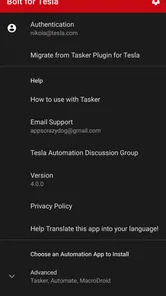
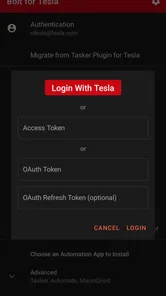
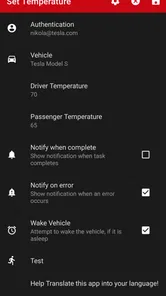
Setting up the app is as smooth as a Tesla ride. You start by connecting it to your Tesla account, ensuring all your data remains secure. The user interface is intuitive, even for those who might not be very tech-savvy. Once you're in, the possibilities are endless. You can automate commands such as locking your car, setting the climate control, or even starting the charging process. It's all about convenience!
Customization at Its Best
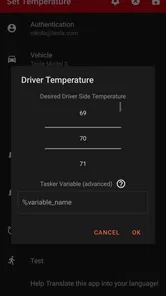
One of the standout features of this app is the level of customization it offers. You can tailor everything to fit your lifestyle. Want your Tesla to warm up every morning before you head to work? Consider it done. Need it to lock up as soon as you walk away? Easy peasy. The app's integration with Tasker means you can set up triggers based on your location, time of day, or even other app interactions. It's like having a personal assistant for your car.
Who benefits most from the extra control?
I think the strongest fit is an Android owner who already understands automation profiles and has a repeated car-related task in mind. That person can connect a Tesla action to a schedule or phone condition without treating the car app as the place for every interaction. Someone who enjoys refining rules may also appreciate the ability to make the workflow fit a particular routine rather than relying on one fixed way of doing things.
By contrast, I would skip it if you want a simple remote-control app with no setup, use iOS, or only need to reach for car controls once in a while. It is also not the right tool for a workflow where a missed or delayed action would create a safety concern. In those cases, direct controls and a human check are the more sensible choice, even if they involve an extra tap.
Compared with the usual alternatives
The everyday alternative is to open the car’s regular controls and perform an action when you need it. That approach is straightforward and keeps the decision in your hands, but it does not tie the action into a wider phone routine. Bolt’s role is narrower than a general automation app: it gives compatible Android automation tools a route to Tesla actions, while Tasker, Automate, or MacroDroid provide the trigger logic and broader workflow.
That division matters when choosing between them. If you do not already use an automation tool, the plugin may add another system to learn for a problem that manual controls already solve. If your phone routines are already part of your day, adding a car action can make sense. I would choose based on the workflow you can explain in one sentence, not on the number of possible combinations you could build.
Why It's a Must-Have
Now, I know what you might be thinking – do I really need this app? Well, if you're someone who loves efficiency and technology, then yes, you absolutely do. The Bolt for Tesla - Tasker Plugin not only saves you time but also enhances your overall Tesla experience. It's about making your life easier and having fun with it at the same time. Plus, it’s a great conversation starter for those who geek out over tech!
In conclusion, if you own a Tesla and an Android device, this app is a match made in heaven. It combines the best of both worlds, offering unparalleled convenience and customization. So, why not give it a try and see how it can transform your daily routine? Trust me, once you start using it, there's no going back!
What to expect from the learning curve
The plugin is not a replacement for learning the automation tool that surrounds it. If Tasker or a similar app is new to you, the first challenge may be understanding why a trigger did or did not run, rather than choosing a Tesla action. I would learn the automation app with a simple phone-only routine first, then add a car action once the conditions are clear. That makes it easier to spot which part needs attention if a test behaves unexpectedly.
Compatibility is another practical point: this is an Android-focused option, and the minimum system requirement is Android 8.0. It is free to install, with optional in-app purchases at $1.99 per item. I would check what an optional purchase covers before paying, and avoid treating any paid addition as necessary until the basic workflow has proved useful for your own routine.
There is a learning curve if Tasker or similar tools are new to you; the plugin is most appealing when you are comfortable troubleshooting conditions and testing a routine before depending on it. I would skip it if you want a straightforward standalone remote control, use iOS, or rarely automate anything. For Android owners who enjoy experimenting, it is a focused option: its 4.8 average from around 240 ratings and over 5,000 installs suggest a small but interested audience, while its Everyone age rating keeps the audience broad. It was released in August 2021 and is now at version 7.0.2, with Android 8.0 or later required.
My connectivity verdict is that this is best treated as a thoughtful shortcut, not a guarantee that every command will happen instantly. Start with one routine, observe how it behaves in your usual parking and network conditions, and keep manual controls handy. For the right person, that modest approach can turn a repeated Tesla task into a useful part of an existing Android workflow; for everyone else, the regular controls are likely the simpler choice.
Bolt for Tesla - Tasker Plugin Frequently Asked Questions
Which devices and automation apps do I need before downloading Bolt for Tesla - Tasker Plugin?
Bolt for Tesla - Tasker Plugin is an Android app intended to work with Tasker, and its purpose is to connect Tesla functions with automation profiles. The app’s minimum operating system requirement is Android 8.0. The store summary also names Automate and MacroDroid as supported automation options, so the plugin may suit users who already build routines with one of those apps.
Is Bolt for Tesla - Tasker Plugin free, and are there any potential extra costs?
The app is free to download, which makes it possible to try its basic setup without an upfront purchase. It also offers in-app purchases priced at $1.99 per item, so some optional content or functionality may involve an extra charge. Check the purchase details in the app before confirming anything, especially if you only want to use the free features.
What is the Bolt for Tesla - Tasker Plugin?
Bolt for Tesla - Tasker Plugin is an innovative app designed to enhance the functionality of your Tesla vehicle by integrating with the Tasker automation app. This plugin allows Tesla owners to automate various tasks and functions, such as controlling climate settings, locking/unlocking doors, and initiating charging sessions, all through custom Tasker profiles. It is developed by Crazydog and is listed in the Auto & Vehicles category, making its focus on vehicle-related automation clear.
How does the Bolt for Tesla - Tasker Plugin work?
The plugin works by connecting your Tesla vehicle with the Tasker app on your Android device, enabling automated tasks. Users can create specific Tasker profiles and actions that trigger certain Tesla functions, providing a seamless and automated driving experience. This requires setting up API access with your Tesla account for secure communication. Once that connection is in place, the automation depends on the profiles and actions you choose to configure.
Is the Bolt for Tesla - Tasker Plugin compatible with all Tesla models?
Yes, the Bolt for Tesla - Tasker Plugin is designed to work with all Tesla models that support the necessary API functions. As long as your Tesla vehicle is capable of receiving software updates and has the required connectivity features, you should be able to use this plugin effectively. It is advisable to check for any specific model restrictions in the app's documentation. Compatibility also depends on the Tesla functions available to your vehicle, so individual automation options may differ.
Pros
- Integrates seamlessly with Tesla vehicles
- Offers automation through Tasker
- User-friendly interface
- Regular updates and improvements
- Enhances Tesla's functionality
Cons
- Requires Tasker to function
- May drain battery faster
- Limited to Tesla vehicles
- Some features are premium
- Initial setup can be complex