Music Tutor (Sight Reading)
- 403.00
- 3.7
- Installs
- 1.00M
- Price
- Free

Screenshots
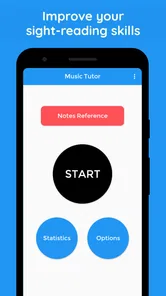
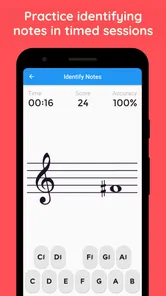
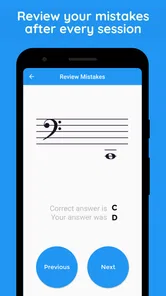
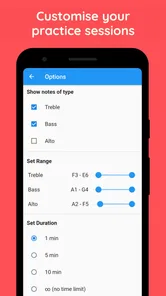
Analysis by Reviewed
Learning to read music is one of those skills that can feel obvious on paper and surprisingly slow in practice. I can recognize a note when I have time to think, yet hesitate when several notes arrive one after another. Music Tutor (Sight Reading) is built for that exact gap. It turns note recognition into a short practice game, asking me to identify what I see rather than letting me study a page indefinitely. After using it, I found it most useful as a focused drill, not as a complete music course.
This is a free music game from JSplash Apps, rated for Everyone. It has been available since January 11, 2016, and its current version is 2.32.3 for devices running Android 5.0 or later. The app has passed the one-million-install mark and holds a 3.7 average from around three and a half thousand ratings. Those figures suggest a well-established learning tool, although the middling score also matches my impression that the experience is practical rather than polished in every detail.
The short version is simple: if you are learning to read notes and want quick repetition away from your instrument, I think it is worth trying. If you want guided lessons, rhythm training, ear training, or a full practice curriculum, you will probably need something else alongside it. The most important thing is understanding where this app helps and where a setup problem, a device issue, or a gap in your own practice routine may be mistaken for a fault in the game.
Making note practice work without unnecessary frustration
I find that note practice works best when I can tell what kind of mistake I’m making, rather than simply repeating a round and hoping it improves. In this section, I’ll look at how to keep the exercises tied to real reading goals and how to make a rough session useful instead of discouraging. That also helps clarify when a focused drill is enough and when a different kind of support is the better next step.
Where new users tend to get stuck
The first obstacle is not usually the notes themselves. It is the change from slow recognition to immediate recognition. When I practice from a printed exercise, I can pause, count lines and spaces, or use a familiar landmark. A timed or game-like exercise removes some of that comfort. That can make the app feel harder than the music I am currently studying, even when the difficulty is actually exposing a useful weakness.
I recommend starting with the clef and range that match your real instrument work instead of trying to cover everything immediately. A pianist who is still becoming comfortable with treble clef may gain more from a short, consistent session in that area than from jumping between unrelated material. The same applies to singers, guitarists, and beginners using the app away from lessons: the exercise should reinforce a current goal, not create a second syllabus.
Another common sticking point is answering by guessing the shape of the note rather than reading its position. Guessing can work for a few easy examples, especially when the notes repeat, but it breaks down as soon as the patterns change. I found it better to say the note name quietly before selecting it. That adds a small pause at first, yet it makes the exercise more deliberate and exposes whether I truly know the note or am reacting to a familiar visual pattern.
More From Our News Desk

Weather by Xiaomi Review: Clear at a Glance, Less Clear Up Close

X Under Pressure: Can It Recover When Posting Goes Wrong?

Clash of Clans Is Won Between the Battles

Android Auto Makes the Case for Quieter Car Software

MobiOffice: Transforming Mobile Productivity with Seamless Integration

EA SPORTS FC™ Mobile Soccer: Redefining Mobile Sports Gaming
The game format can also encourage chasing a better result instead of building reliable recognition. If I keep restarting after mistakes, I may spend the session avoiding the notes that need work. A more useful approach is to treat wrong answers as information. Notice which line or space caused the hesitation, then review that area separately before returning to a mixed exercise.
Small setup checks that prevent avoidable problems
Before judging the app, I would check the basics. Make sure the device meets the Android 5.0 minimum, then install the current 2.32.3 release shown for the app. If the screen looks cramped, rotate the device or adjust the way you hold it rather than assuming the note display itself is wrong. Music notation needs enough visual space to distinguish nearby lines and spaces, and a small phone can make that harder than a larger screen.
Give yourself a quiet position and a stable surface. This is a visual exercise, so headphones are not the solution to every distraction. A notification, a moving screen, or one-handed use while walking can be enough to turn a recognition drill into a test of concentration. I get better results when the device is placed where I can look directly at the staff and answer without shifting my hand between several awkward positions.
It is also worth checking whether your touch is being registered consistently. If selections seem to miss, tap the center of the intended control and avoid touching the display with another finger. Clean the screen if necessary, close other demanding apps, and reopen the game if the interface has become unresponsive. These are ordinary checks, but they matter more in a quick-answer exercise than in a reading app because one missed touch can look like a musical mistake.
Keep the first session short enough to stay accurate. I prefer several focused rounds during a week over one long attempt that ends with rushed answers. The app is free to download, with in-app purchases priced at $1.99 per item. That makes experimenting inexpensive, but I would still use the free experience long enough to decide whether the basic practice loop fits my learning style before buying anything.
A recovery workflow when practice stops going well
When I start missing notes, I do not immediately increase the difficulty or blame the display. I first reduce the pace of my own decisions. I look at the staff, identify the nearest familiar reference note, and count upward or downward. This is slower than instant recognition, but it gives me a dependable fallback. With repetition, the counting step becomes less necessary.
A useful recovery routine has three stages. I begin with notes I can identify comfortably, move to a narrow group that includes the troublesome positions, and finish with a mixed set. The middle stage is the important one. It isolates the problem without removing the surrounding context completely. If I only practice easy notes, I feel successful without improving the weak area; if I practice a broad range immediately, I can lose track of what actually caused the errors.
I also avoid treating every wrong answer as a reason to stop. Instead, I mentally sort mistakes into three types: I did not know the note, I knew it but answered too slowly, or I tapped the wrong place. Each type needs a different response. The first calls for note review, the second for repeated exposure, and the third for a more comfortable device position or slower hand movement. This distinction is one of the most useful ways to turn a simple game into purposeful practice.
For learners working with a teacher, the app becomes more valuable when connected to the lesson. I can note the clef, range, or note group that causes trouble and then ask for exercises that use similar material on the instrument. It should not replace reading real music, because real scores involve rhythm, phrasing, key signatures, articulation, and musical context. It can, however, remove some of the basic note-name hesitation that gets in the way of those larger skills.
When the app is not the cause of the difficulty
Sometimes the problem is the learner’s current method rather than the software. If I practice while tired, rush through answers, or look at the same narrow range for too long, my performance drops even when the app is behaving normally. Note reading is mentally repetitive, and accuracy can fall before I notice that concentration has gone. A short break often tells me more than another frustrated attempt.
Vision can matter as well. Glare, low brightness, a small display, or sitting too far away may blur the difference between adjacent staff positions. I would adjust the environment before concluding that the notation is unclear. If reading printed music is also difficult, an eye check or a larger screen may be more helpful than changing apps.
Touch accuracy is another source of confusion. A player may recognize the right note but select the wrong answer because the controls are close together or the phone is being held at an angle. I test this by answering slowly for a few rounds. If slow taps work but hurried taps do not, the issue is probably coordination rather than note knowledge. Practicing with the device resting on a table can separate those two problems.
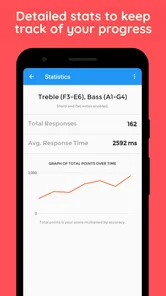
Finally, progress in sight-reading is not always visible as a higher score. Sometimes the real improvement is that I recover faster after seeing an unfamiliar note, or that I no longer need to count from a reference point. I would judge the app by whether my reading away from the screen becomes more fluent, not only by whether one session produces a better result.
How it compares with lessons, flashcards, and full music apps
Compared with paper flashcards, Music Tutor gives me a more active response cycle. I see a note, make a decision, and receive an immediate result. Flashcards remain useful for slow study and for writing my own examples, but they do not naturally create the same repeated recognition pressure. The app is better for quick drills; cards may be better when I want to focus on a tiny group without any game-like distraction.
Compared with a teacher, it is far narrower. A teacher can hear whether I am counting correctly, explain why a note belongs where it does, correct posture, and connect reading to actual music. The app cannot provide that personal diagnosis. Its advantage is availability: I can use it for a few minutes between lessons, while waiting for an instrument, or when I want extra repetition without preparing a worksheet.
Compared with broader music-learning applications, this game is easier to approach when my only goal is note recognition. A larger learning platform may offer rhythm, ear training, theory, songs, and structured courses, making it the better choice for a complete beginner who wants one guided path. The trade-off is that those platforms can make a simple daily note drill feel buried under other lessons. Music Tutor is more focused, but that focus also limits its scope.
I would not choose it as my main tool if I need substantial rhythm practice, audio feedback, or detailed explanations of notation. I would also skip relying on it alone if I am preparing for an exam or trying to read complete scores fluently. In those situations, the app can support the routine, but real sheet music and informed feedback should remain central.
Practical ways to use it every day
My favorite use case is the five-minute gap before playing. I open the game, complete a small amount of note work, and then start the instrument session by reading a simple passage. The transition matters: the screen exercise warms up recognition, while the score shows whether that recognition survives in a real musical setting.
Another practical routine is to use it after a lesson, not before one. If a teacher points out that I hesitate around certain notes, I can spend the next few days giving those positions extra attention. I then return to mixed practice so that the improvement does not remain isolated. This makes the app a follow-up tool rather than a disconnected game.
For parents helping a young learner, the Everyone rating makes it suitable for a broad age range, but I would still supervise the purpose of the session. A child may enjoy tapping through answers without thinking about the staff. Asking the child to name the note aloud, find it on the instrument, or point to it in a beginner book turns the activity into music practice instead of a guessing contest.
One subtle trade-off is speed. Faster answers can feel rewarding, but speed without accuracy creates shallow recognition. I would rather keep a steady pace and identify the reason for mistakes than rush toward a more impressive result. Once the note names feel secure, quicker responses usually develop more naturally.
It is also sensible to keep the app in its proper place. A short digital drill can be easier to start than opening a score, but it does not teach me how notes behave in a phrase. I use it to sharpen the basic visual reflex, then spend time reading music with rhythm and musical intention. That combination is much stronger than either activity alone.
My practical verdict
Music Tutor (Sight Reading) is a modest but useful tool for a specific musical job. I like its directness: it focuses on seeing notation and responding, without asking me to commit to a large course. The free entry point makes it easy to test, and the long availability of the app plus more than one million installs show that it has remained relevant to many learners. The 3.7 average also feels fair to me: the concept is helpful, while the experience may not satisfy people expecting a complete or highly polished music-learning system.
The best way to use it is as a repeatable note-recognition drill, not as a substitute for playing real music. Start with a manageable range, keep the device comfortable to read, separate musical errors from touch errors, and connect the exercises to your instrument or lessons. If you do that, even a short session can target a real weakness instead of becoming random tapping.
I would recommend it to beginners, returning musicians rebuilding their reading skills, and players who want an uncomplicated practice companion. I would look elsewhere, or add another resource, if I needed structured theory, rhythm development, detailed feedback, or a full path from first lesson to advanced repertoire. For the right user, Music Tutor (Sight Reading) earns its place through repetition and convenience rather than spectacle. That is exactly why I would keep it available for those small moments when a few focused minutes can make note reading feel more automatic.
Music Tutor (Sight Reading) Frequently Asked Questions
What does Music Tutor (Sight Reading) help you practice?
Music Tutor (Sight Reading) is a music game focused on improving sight-reading skills, making it a practical option for people learning music. Its exercises ask you to recognize written notes, helping you build familiarity with standard notation through repeated practice. It is most useful for strengthening note recognition; it works best alongside playing an instrument or taking lessons rather than as a complete music course.
What is Music Tutor (Sight Reading)?
Music Tutor (Sight Reading) is an educational app designed to help users improve their ability to read sheet music. It presents notes on a musical staff and asks you to identify them, turning practice into short interactive exercises. The app is suitable for beginners learning note names as well as more experienced musicians who want to strengthen speed and accuracy.
Who can benefit from using Music Tutor (Sight Reading)?
The app can be useful for piano students, singers, instrumentalists, music theory learners, and anyone beginning to read standard notation. Beginners can use it to memorize notes and understand the staff, while intermediate players may use the timed exercises to improve recognition speed. It is also practical for students who want extra practice outside formal lessons.
How does the sight-reading practice work?
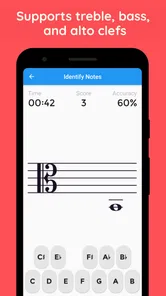
Music Tutor (Sight Reading) displays musical notes and requires you to select or enter the correct answer, depending on the exercise and device setup. Practice generally focuses on recognizing notes in different clefs and gradually responding more quickly. Repeated sessions help develop visual familiarity, although the app works best as a supplement to playing an instrument rather than as a complete music course.
Does Music Tutor (Sight Reading) include different difficulty levels or clefs?
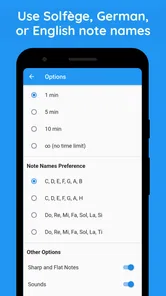
The app is designed to support progressive practice, allowing users to work with common musical clefs and adjust the challenge as their skills improve. Beginners can start with a limited note range and slower exercises, while more confident readers can practice wider ranges and timed responses. Available options may vary slightly according to the app version and platform.
Pros
- Covers both treble and bass clefs for broader practice.
- Short exercises make it easy to fit practice into spare moments.
- Immediate note feedback helps identify mistakes quickly.
- Useful for beginners building confidence with basic notation.
- Simple interface keeps attention focused on reading the score.
Cons
- Advanced players may find the exercises too limited.
- Some features may require in-app purchases or a premium upgrade.
- Practice can feel repetitive without more varied challenges.
- It may not teach rhythm
- theory
- or instrument technique in depth.
- Results depend on accurate touch and screen interaction.