Trace Teams
- 74.00
- 4.9
- Installs
- 10.00K
- Price
- Free

Screenshots
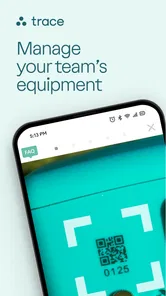

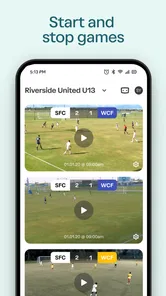
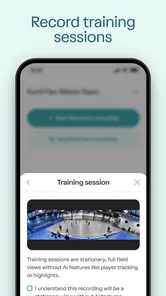

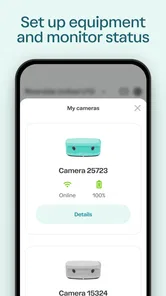
Analysis by Reviewed
I found Trace Teams most useful as a companion for people already working with Trace equipment and organized winter-sports sessions. It is a free sports app from AlpineReplay, built around managing a Trace TraceCam, its case, video uploads, and team rosters. That focus makes it more specialized than a general video editor or a broad fitness tracker, and that is both its main strength and its first important limitation.
My experience with it is that the app makes the most sense when several people need to share one recording workflow. A coach, club organizer, parent, or team member can use it as the practical control point for equipment and footage instead of treating every camera interaction as a separate task. If you only want to record casual phone video, this is probably not the app I would choose. If you use the Trace setup and need a clearer way to coordinate people and uploads, it has a much more convincing purpose.
Where the real friction usually appears
The first challenge is understanding what this app is—and what it is not. Trace Teams is not presented as a general-purpose sports diary where I can manually log every workout, compare unrelated activities, or edit any video from my phone. Its role is narrower: it connects the management of Trace hardware and related video work with the people using it.
That narrow role is helpful once the setup is clear, but it can feel confusing if someone opens the app expecting a complete standalone camera experience. The app depends on a wider Trace workflow, so a problem that looks like an app failure may actually come from the camera, the case, the upload process, or an incomplete roster arrangement.
I would therefore begin by asking a simple question: am I trying to manage Trace equipment and team footage, or am I looking for an ordinary sports camera app? The answer determines whether the app feels purpose-built or unnecessarily specialized. For a Trace user, the dedicated approach is more useful than forcing everything through a generic gallery. For everyone else, the extra structure may not justify installing it.
Another point that can catch people out is the difference between seeing a device in the app and completing the whole recording workflow. A camera or case may be available for management, while the actual video still needs time and the right connection path before it appears where expected. I found it better to treat each stage separately: equipment readiness, session organization, upload progress, and roster visibility.
This separation also helps when several people are involved. A team organizer may think a missing clip is a roster problem, while the athlete may be waiting for an upload to finish. Keeping those jobs distinct makes troubleshooting much less frustrating.
More From Our News Desk

 Gmail
GmailGmail in a Busy Inbox: Who Benefits Most?
From first account to crowded workday, Gmail earns its place through dependable search and flexible sorting—but its best fit depends on how much inbox maintenance you can tolerate.

 Prime Video
Switching to Prime Video: What Changes in Your Viewing Routine
Prime Video can make a compelling second home for streaming, but switching means learning a different catalog, rental layer, and route from browsing to playback.

 Universal TV Remote Control
Universal TV Remote Control Works Best as a Reliable Backup
A phone remote earns its place through quick setup and reliable habits. Here is how to get more from Universal TV Remote Control—and where its limits show.

 Weather - By Xiaomi
Weather by Xiaomi Review: Clear at a Glance, Less Clear Up Close
Xiaomi’s weather app makes everyday forecasts quick to scan, but its calm surface can leave useful details and recovery paths harder to find than they should be.

 X
XX Under Pressure: Can It Recover When Posting Goes Wrong?
A resilience-focused review of X, examining setup, mistaken posts, interruptions, weak connections, and the gaps that matter when recovery needs to be dependable.

 Clash of Clans
Clash of Clans Is Won Between the Battles
Its raids are quick; its community is a long-term project of coordination, teaching, rivalry, and shared responsibility—with all the friction that entails.
Latest News



Why a team workflow changes the value of the app
For an individual, the advantage is convenience: fewer disconnected steps around the Trace camera and its footage. For a group, the advantage is consistency. A roster gives the session a shared structure, which is more practical than asking every participant to remember separate camera details or send large files through unrelated messaging apps.
That does not mean the app removes every organizational task. Someone still needs to decide who belongs in a roster, which device is being used, and when the footage should be uploaded. The benefit is that these decisions have a dedicated place instead of being spread across notes, chats, and a phone gallery.
One useful habit is to establish the roster before the activity begins rather than trying to reconstruct it afterward. If a club regularly records the same group, preparing the people list in advance should reduce the chance of confusing one session with another. I would also avoid making last-minute changes while an upload is in progress, because it is easier to diagnose a problem when the session structure stays stable.
Setup checks that save time before recording
I would start with the basics: install the current version, make sure the phone meets the minimum operating-system requirement, and open the app before arriving at the activity. The current release is version 3.1.18, and the minimum supported operating system is iOS or Android 11. That matters for anyone using an older phone, especially a spare device kept in a club bag.
The app is free and rated for Everyone, so the main decision is not a purchase commitment. The more important question is whether the phone, Trace equipment, and intended team workflow are ready at the same time. A free app can still create delays if it is installed only after the session starts.
Before using it outdoors, I would check that the phone has enough battery for the entire management and upload process. I would also leave enough local working room for normal app activity and avoid relying on a weak connection for the first upload. These are ordinary precautions, but they matter more when footage is involved than when I am simply checking a roster.
The next check is physical rather than digital. Confirm that the Trace TraceCam and case are together, charged as needed, and accessible before the group disperses. It is surprisingly easy to blame the app when the camera is still packed away, the case is not ready, or the device has not completed the step required before footage can be handled.
I would then open the team area and verify the people who should be included. The goal is not to create a perfect database; it is to make the current session understandable. Use names that the organizer and participants will recognize, and avoid making several nearly identical entries that could make later video organization harder.
A practical setup sequence looks like this:
Open the app before the session and confirm that the correct Trace equipment is available to manage.
Check the case and camera as physical items, not only as entries on the phone.
Review the roster so the intended participants are easy to identify.
Start the upload workflow when the phone has a dependable connection and enough battery.
Wait for the process to settle before assuming that a clip or participant record is missing.
This order reflects an important trade-off: convenience comes from preparation, not from tapping through the app quickly. Trace Teams can centralize the workflow, but it cannot compensate for a camera left behind or a phone that loses connection at the wrong moment.
What to do when a device or upload does not appear
If the camera or case is not visible, I would first check the physical setup and the phone’s basic connection state before reinstalling anything. Close and reopen the app, confirm that the equipment is powered and nearby, and give the app a moment to refresh. Repeatedly tapping the same control rarely helps if the underlying device is unavailable.
If a video does not show up immediately, I would not assume it has been lost. Uploading is a separate stage from recording, and the result may depend on the connection and the camera’s readiness. Keep the phone open to the relevant workflow for a reasonable period, avoid switching between several devices, and check again after the upload has had time to complete.
When a roster entry seems absent, I would inspect the roster itself rather than the video first. A participant may not be included in the current group, or the organizer may be looking at a different session context. Correcting the people structure before investigating the footage often prevents a long and unnecessary search.
These are deliberately simple checks, but they are useful because they isolate the source of the problem. The app is the visible part of the process; the Trace camera, case, phone, connection, and team arrangement all have a role.
Recovering a workflow without starting everything over
The best recovery approach is to identify the last step that definitely worked. If the camera was recognized but the upload is missing, focus on the upload stage. If the upload completed but the wrong people are associated with the session, focus on the roster. If nothing was recognized at all, return to the physical equipment and phone connection first.
I would avoid making several changes at once. Reinstalling the app, changing phones, editing the roster, and reconnecting the camera simultaneously may feel energetic, but it removes the clues that could explain the problem. A controlled reset is more useful: reopen the app, check the device, verify the roster, and retry the single failed stage.
For a club or family using the system repeatedly, keeping a short internal routine is worthwhile. Decide who is responsible for the camera, who checks the roster, and who confirms that uploads have finished. This is not a feature claim about the app; it is a practical way to use a specialized tool without making every participant responsible for every step.
A particularly useful habit is to confirm completion before leaving the location whenever the connection allows it. If a transfer is still pending, the organizer knows there is unfinished work. If the app shows the expected equipment and team context but the footage is not yet available, the next action is clearer than simply telling everyone that “the app failed.”
For shared devices, I would also keep the workflow consistent. Switching between several phones can make it harder to know which device is managing the equipment or waiting for an upload. One designated phone is often easier for a small team, while a larger organization may prefer a clear handoff routine rather than informal device swapping.
There is a trade-off here. Centralization reduces scattered information, but it can create a single point of confusion when nobody knows who owns the next step. The app works best when the team treats it as a shared process with clear responsibility, not as a magic button that automatically resolves every equipment and video issue.
When the app is not the cause
Some problems are more likely to come from conditions around the app. A weak or interrupted connection can affect uploads. Low phone battery can interrupt a long session. An older operating system can prevent a smooth installation or update. A camera or case that is not ready cannot be fixed by changing a roster.
It is also possible for expectations to be the real issue. Someone may expect instant video availability immediately after recording, while the workflow still needs time to move footage from the equipment through the phone. Someone else may expect the app to replace a full editing suite, even though its practical purpose is equipment, upload, and roster management.
That is why I would compare the symptom with the task. If the problem is trimming, adding music, or creating a polished social clip, a dedicated video editor is likely a better tool after the Trace workflow is complete. If the problem is tracking general training load across many sports, a broad fitness platform may suit you more. If the problem is coordinating Trace footage among a group, Trace Teams is the more relevant choice.
The app’s sports category can make it sound broader than it is. In practice, its value comes from the Trace ecosystem rather than from being a universal sports companion. That distinction should be clear before installation, especially for users who do not own or manage Trace equipment.
Who should use it and who should skip it
I would recommend it to a ski club, training group, coach, family, or individual who already relies on a Trace TraceCam and wants one place to manage the related camera, case, uploads, and roster. It is also a sensible option when several people need access to the same organized recording process and informal file sharing has become messy.
I would be more cautious if you only record with a phone, only need a basic camera remote, or want a complete performance-analysis platform. In those cases, the specialized Trace workflow may add steps instead of removing them. The same applies if your main goal is editing finished footage rather than organizing how it gets uploaded and connected to participants.
Compared with sending clips through a messaging app, a dedicated team workflow should be easier to keep organized, particularly when multiple athletes are involved. Compared with a generic cloud folder, it is more closely tied to the Trace equipment and roster context. Compared with a general sports tracker, it is less broad but potentially more useful for this one recording job.
The app has a 4.8 average from around 479 ratings, with roughly 74 written reviews and over 10 thousand installs. Those figures suggest that it has found a positive audience, but I would still interpret them in context: a specialized tool can satisfy its intended users very well without being the right download for everyone browsing the sports category.
Because it is free, trying it carries little financial risk. The real cost is setup time and the need to use compatible Trace equipment and a supported phone. I would install it before a major activity, not minutes before the first run, so there is time to learn where the equipment, upload, and roster parts fit together.
My practical verdict after using the workflow
Trace Teams is best understood as a coordination app for Trace users, not as a general sports app. Its focused design is valuable when the camera, case, video uploads, and people involved all belong to the same organized activity. I like that it addresses a real problem: keeping team footage and equipment management from becoming a pile of disconnected tasks.
My main reservation is that the app cannot make the surrounding process effortless. Users still need to prepare the hardware, use a suitable phone, allow uploads to complete, and keep the roster sensible. When something goes wrong, the correct fix may be outside the app. That is not necessarily a flaw, but it means the best experience comes from treating the app as one part of a complete workflow.
AlpineReplay has made a focused sports utility rather than a universal training platform. For the right user, that focus is exactly why it is worth keeping installed. For someone without Trace equipment or without a need to coordinate shared footage, a normal camera, cloud storage service, video editor, or general fitness app may be simpler.
I would choose it for a team that wants a repeatable routine: prepare the Trace setup, confirm the roster, manage the recording process, and allow uploads to finish before judging the result. I would skip it for casual phone recording or broad activity tracking. Used within its intended context, it is a practical free companion that can reduce confusion—provided the team understands where the app ends and the equipment, phone, and connection begin.
Trace Teams Frequently Asked Questions
What devices and operating-system versions are compatible with Trace Teams?
Trace Teams is a mobile sports app for managing Trace equipment and team resources. It requires iOS 11 or later, so check your device’s software version before downloading. If your phone or tablet meets that requirement, you can use the app to manage a Trace TraceCam, case, video uploads, and rosters. The app is free to download and is intended for everyone.
What is Trace Teams and what can I use it for?
Trace Teams is a team communication and collaboration app designed to help groups organize work, share updates, coordinate tasks, and stay connected in one place. It can be useful for businesses, project groups, clubs, sports teams, and other organizations that need structured communication. Before downloading, check whether its features match your team’s workflow and whether your organization already uses a supported account or workspace.
Is Trace Teams free to download and use?
The availability of free features, subscriptions, or organization-based access may depend on the version of Trace Teams and the account provided by your team administrator. Downloading an app does not always mean that every feature is free. Some collaboration tools reserve advanced controls, storage, reporting, or administrative functions for paid plans. Review the current store listing and any pricing information before creating an account.
What information does Trace Teams require to create an account?
Trace Teams may require basic details such as an email address, name, password, or an invitation from an existing team. Depending on how your organization manages access, you might need to sign in through a company account or another supported authentication method. It is worth checking the requested permissions and privacy policy before registration, particularly if you plan to use the app on a personal device.
Can I use Trace Teams on both Android and iOS devices?
Trace Teams is intended for mobile team collaboration, but supported devices, operating-system versions, and feature availability can change over time. Before installing it, compare the requirements shown on the Google Play Store or Apple App Store with your phone or tablet’s software version. Also confirm that your team uses the same service across devices, since access may depend on a shared workspace or administrator invitation.
Pros
- Real-time location sharing helps teams coordinate in the field.
- Simple team-based design makes it easy to follow group members.
- Useful for tracking routes
- activities
- and team movements.
- Can improve safety by showing where teammates are located.
- Suitable for sports
- work crews
- and outdoor group activities.
Cons
- Continuous GPS use may noticeably reduce your phone’s battery life.
- Location tracking can raise privacy concerns for some team members.
- Accuracy may drop indoors or in areas with weak GPS coverage.
- Requires reliable internet access for timely location updates.
- Some useful features may depend on account or subscription limits.