THINKWARE DASH CAM LINK
- 262.00
- 3.3
- Installs
- 500.00K
- Price
- Free
Screenshots
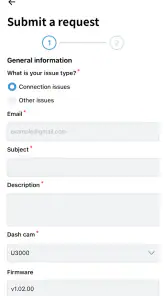
Analysis by Reviewed
Developed by THINKWARE, this free Auto & Vehicles app is available for Everyone and runs on Android 9 or later. It has passed the half-million-install mark, with an average rating of 3.3 from roughly 1.6 thousand ratings. Those figures suggest a useful but not universally smooth experience, which matches my impression: the app can be convenient when the camera and phone connect properly, but it depends heavily on the surrounding hardware and wireless connection.
The most important thing to understand before installing it is that this is a companion tool, not an independent dash-cam application. You need a compatible THINKWARE dash cam to get meaningful use from it. If you are looking for navigation, route planning, insurance documentation tools, or a camera that records through the phone by itself, this is the wrong category of app. If you already own the right camera, however, it can remove several annoying steps from everyday video checking.
How I use it in a normal dash-cam routine
Starting with the live image
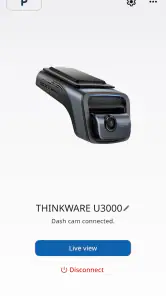
My baseline workflow is deliberately simple. I first make sure the dash cam is powered and ready, then open the app when I need to see the current camera view. The live image is useful for practical checks rather than entertainment: I can confirm that the camera is pointed in the right direction, see whether the lens view is obstructed, and check framing after the camera has been moved.
That last use is more valuable than it sounds. A dash cam can shift slightly when a windshield mount is adjusted, cleaned around, or exposed to repeated vibration. Looking at the live view before driving gives me a chance to correct the angle instead of discovering later that an important part of the road was outside the frame. I would rather spend a short moment checking the view in the driveway than assume the camera is positioned correctly.
The live screen also helps when another person has installed or repositioned the camera. Instead of leaning across the dashboard and guessing from the driver’s seat, I can use the phone display to inspect the image more accurately. This is especially helpful when the camera sits behind the rear-view mirror, where the physical screen may be difficult to see.
Latest News
Reviewing a recording after an incident
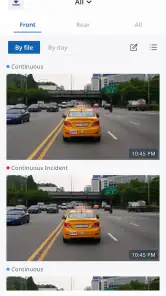
The second part of my routine is reviewing recorded video. If something unusual happens on the road, I prefer to check the relevant clip soon after parking while the circumstances are still clear in my mind. The app’s role here is convenience: I can access the camera’s recordings from the phone rather than immediately taking out storage media and finding a computer.
I find this approach most useful for small but important events, such as a close merge, a parking-lot bump, or uncertainty about what happened at an intersection. A quick review can tell me whether the camera captured the event and whether the view is clear enough to be useful. It also prevents me from relying only on memory, which becomes less reliable after a stressful moment.
There is a sensible habit behind this workflow: I do not wait until I urgently need a clip to discover how the app connects to the camera. I test the connection while parked, open a recording, and become familiar with the basic controls before an incident occurs. That preparation is one of the biggest differences between casually installing the app and actually making it part of a dependable dash-cam setup.
Keeping the phone and camera relationship practical
Wireless camera apps are most comfortable when used while the vehicle is stationary. I avoid trying to operate the app while driving, even if I only want to glance at a video. The safer pattern is to finish the journey, park somewhere appropriate, and then connect and review. This also gives the app a better chance of maintaining a stable connection because the phone is not being handled at the same time.
If the app does not immediately show the camera, I work through the basics before assuming something is broken. I check that the dash cam is powered, confirm that I am near the vehicle, and close and reopen the app if necessary. I also avoid repeatedly switching between several wireless connections during the same session. A clean, repeatable setup is usually less frustrating than tapping randomly and hoping the connection appears.
Settings worth checking before relying on it
The app itself is mainly for viewing and handling camera content, so the most important settings are often on the dash cam rather than inside the phone interface. I make sure the camera’s recording behavior, date and time, and image orientation are correct before treating any saved clip as dependable evidence. A mobile viewer cannot repair a camera that was configured incorrectly.
Checking the date and time is particularly worthwhile. A video can be visually clear and still be harder to understand if its timestamp is wrong. I make this check after the camera has been disconnected from power for a while or after changing the vehicle’s electrical setup. It is a small maintenance step that many people skip because the live image looks normal.
I also inspect the camera angle through the app after making any physical adjustment. The phone view is more reliable than judging the lens position from outside the vehicle. I look for enough road ahead, a sensible horizon, and minimal obstruction from the dashboard or surrounding trim. The goal is not simply a pleasing image; it is a frame that preserves useful context if a recording needs to be examined later.
Another setting-related habit is to understand where recordings are stored and how they are organized on the camera. I do not assume that every clip shown in the app has the same importance or retention behavior. When I find something worth keeping, I deal with it promptly rather than leaving it mixed among ordinary driving footage. This reduces the risk of overlooking the right moment later.
The best preparation is not a clever shortcut; it is a repeatable pre-drive check. I confirm power, camera angle, time, and the ability to connect while parked. That short routine makes the app much more useful than installing it only after an incident.
Making connection problems easier to diagnose
The main friction point is the wireless link between the phone and the dash cam. When it works, the app feels direct. When it does not, the problem may be the camera’s power state, the phone’s current connection, distance from the vehicle, or the app session itself. Because several parts are involved, I find it helpful to change one thing at a time instead of resetting everything immediately.
I begin close to the vehicle with the camera running. If the phone is connected to another wireless network or accessory, I simplify the situation before trying again. I then reopen the app and wait for the camera to become available. If a connection succeeds but video browsing feels unreliable, I stay parked and test a different recording rather than concluding that every file is damaged.
This method matters because a failed connection does not always mean the recording is missing. Sometimes the issue is simply the communication path between the phone and camera. For important footage, I treat the app as a convenient first review method and keep a second recovery plan in mind, such as accessing the camera’s storage through the usual hardware process. That is not a criticism of this particular app so much as a sensible rule for any wireless dash-cam workflow.
Faster patterns for frequent users
After using the app repeatedly, I stop treating every session as a new setup. I park, power the camera, open the app, and go directly to the task I need: live framing or recorded video. Keeping this order consistent saves more time than hunting for an elaborate feature that may not be available on every compatible camera.
For a quick check, I use the live view first. It answers immediate questions such as whether the camera is active and whether the lens is aimed correctly. I only move into recorded footage when I need to investigate a particular journey or event. Separating those two purposes keeps the session short and avoids browsing through files without a clear reason.
When reviewing an event, I write down the approximate time and location before opening the recording. This gives me a search target instead of making me watch unrelated footage from the beginning. It is a simple technique, but it is especially useful after a long drive when several clips may look similar at first glance.
I also review important footage while the details are fresh. If a clip matters, I do not rely on remembering its position in the camera’s storage. I note what happened, check that the image contains the relevant road area, and preserve the clip using the appropriate process for the camera. The app makes initial access easier, but good evidence handling still depends on the user being organized.
Another practical pattern is using the app during installation or after cleaning the windshield. A clean lens and a correctly positioned camera are more important than a polished phone interface. I use the live image to verify the result immediately, then avoid unnecessary adjustments once the framing is right. Repeatedly moving the camera without checking the view can create a cycle of small alignment errors.
Where the app reaches its limits
I would not choose THINKWARE DASH CAM LINK if I wanted a standalone phone camera. The app’s value depends on owning and powering a compatible THINKWARE dash cam, so it does not make sense as a download for someone comparing ordinary driving apps. It also is not a replacement for navigation or a broader vehicle-management platform.
The app is less appealing to drivers who want a completely hands-off experience. Viewing a live image or checking a recording requires attention and usually a parked vehicle. That is appropriate for safety, but it means the app will not help someone who expects automatic incident reporting or continuous remote supervision from a phone alone.
Wireless access also has a practical trade-off. It is faster than removing storage media for a quick check, but it may be less dependable than a direct computer-based review when a file is especially important or a connection is unstable. I see the app as the convenient inspection layer, not the only method I would trust for preserving critical footage.
The rating of 3.3 indicates that the experience has not been equally smooth for everyone. I would interpret that as a reason to test the app with your specific THINKWARE camera and phone before depending on it. Compatibility and connection behavior matter more here than the fact that the app is free. The current version is 1.5.21, and the app supports Android 9 and newer, so older Android devices may not be suitable even if the dash cam itself still works.
iPhone users should also approach the app as a companion for supported THINKWARE hardware rather than assuming that any mobile device can connect to any camera. The right expectation is important: this is a camera-linked utility, and the camera model remains central to the experience.
Who gets the most value from it
I think it is a good fit for drivers who already own a THINKWARE dash cam and occasionally need to inspect footage without sitting at a computer. It is especially useful for people who adjust their camera themselves, share a vehicle with another driver, or want a quick way to confirm that the view is correct after installation.
It can also help families who need to review a minor road event together. One person can park, connect the phone, and show the relevant recording without immediately handling the camera’s storage. For a small collision or disputed maneuver, that convenience can make the first review faster and less stressful.
I would be more cautious about recommending it to someone buying a dash cam specifically for advanced remote features. The app’s core job is live viewing and recorded-video access. If your priority is navigation, cloud-style monitoring, automatic phone recording, or a complete vehicle dashboard, you should compare other products designed around those needs instead of expecting this companion app to expand beyond its purpose.
My verdict after building a habit around it
THINKWARE DASH CAM LINK works best when I treat it as one part of a disciplined dash-cam routine. Its strengths are clear: it gives compatible THINKWARE camera owners a phone-based way to inspect the live view and review recordings, and it can save time when I only need to check a clip while parked.
Its weaknesses are equally practical. The experience depends on the camera, power, wireless connection, and phone environment. It does not turn a dash cam into a full smart-driving system, and I would not rely on wireless access alone for every important archival task. Users who expect a universal dash-cam app may find that limitation disappointing.
For me, the deciding question is whether you already have the right THINKWARE hardware. If you do, the free installation is worthwhile because it supports useful habits: verify the framing, check the time, review incidents promptly, and keep a backup method for important files. If you do not own a compatible camera, there is little reason to choose this app over a general driving tool.
THINKWARE has kept the product focused, and that focus is both its advantage and its boundary. I recommend it to existing owners who want easier access to their camera, provided they test the connection before an urgent situation. Used that way, it is a practical companion rather than a flashy extra—simple, helpful, and most effective when paired with consistent preparation.
THINKWARE DASH CAM LINK Frequently Asked Questions
Is THINKWARE DASH CAM LINK free, and what devices can install it?
THINKWARE DASH CAM LINK is a free app in the Auto & Vehicles category, made by THINKWARE. It is intended for phones running Android 9 or later, so check your device’s operating system before downloading. The app is rated for Everyone. Its main purpose is to connect a phone with a compatible THINKWARE dash cam, rather than to operate as a general video player.
What is THINKWARE DASH CAM LINK used for?
THINKWARE DASH CAM LINK is the companion mobile app for compatible THINKWARE dash cameras. After connecting your phone to the camera’s built-in Wi-Fi, you can preview the live recording, browse saved videos and photos, download important clips, and adjust supported camera settings. It is particularly useful when you need to review footage at the scene without removing the memory card from the dash cam.
Which dash cameras are compatible with THINKWARE DASH CAM LINK?
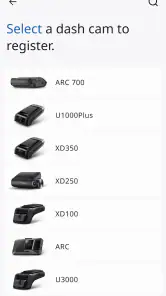
Compatibility depends on the exact THINKWARE dash cam model, firmware version, and sometimes the region where the product was purchased. The app is designed for supported THINKWARE cameras rather than every dash cam on the market. Before downloading, check the camera’s manual, product page, or the compatibility information in the app store. If your camera is not supported, the app may install but fail to connect or provide limited functionality.
How do I connect the app to my THINKWARE dash cam?
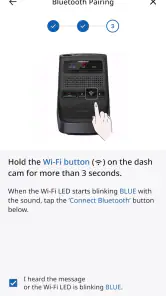
To connect, turn on the dash cam and enable its Wi-Fi or smartphone connection mode, then open the phone’s Wi-Fi settings and join the network created by the camera. Launch THINKWARE DASH CAM LINK afterward and allow the requested permissions, such as local network or location access where required by the operating system. Keep the phone close to the camera, and temporarily disable mobile data or automatic network switching if the connection repeatedly drops.
Can I download and share dash-cam videos with the app?
Yes, on compatible models the app lets you browse recordings stored on the dash cam’s memory card and transfer selected videos or images to your smartphone. Once saved locally, clips can usually be viewed, backed up, or shared through messaging and social apps. Transfer speed depends on the file resolution, video length, Wi-Fi connection, and phone storage. Large high-definition or event recordings may take noticeably longer to download.
Pros
- Remote access to compatible THINKWARE dash cam footage
- Live View helps check the vehicle and camera framing remotely
- Event clips can be downloaded directly to a mobile device
- Wireless connection avoids removing the camera’s memory card
- Useful alerts can help users review incidents more quickly
Cons
- Works only with supported THINKWARE dash cam models
- Wi-Fi connection may temporarily interrupt normal phone internet access
- Remote features depend on the dash cam having power and network access
- Large video files can take time to transfer to the phone
- Some advanced functions may vary between Android and iOS devices
- Category
- Auto & Vehicles
- Version
- 1.5.21