Keiki Learning games for Kids
- 2.23K
- 4.6
- Installs
- 5.00M
- Price
- Free

Screenshots
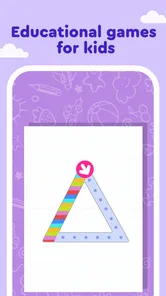
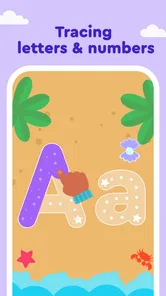

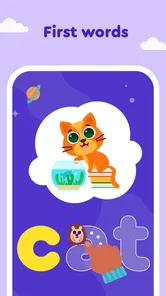
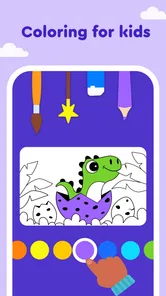
Analysis by Reviewed
When I hand a young child a learning app, I want the first minute to feel simple: tap, try, notice what happened, and decide whether to keep going. Keiki Learning games for Kids is aimed at early learners, especially children around preschool age, and its appeal is the chance to practise foundational skills through play rather than a worksheet. I’d treat it as a short, supervised activity, not as a substitute for talking, reading, counting objects, or hands-on play together.
Starting with a small, clear task
For a child who is still learning how to use a phone or tablet, the first useful test is whether they can begin an activity without an adult navigating every step. Keiki’s colorful, child-oriented presentation is intended to make that first action inviting. I’d still sit nearby at the start: a young child may need help choosing an activity, understanding what a prompt asks, or returning to the game after a tap takes them somewhere unexpected.
A practical way to introduce it is to pick one brief activity together, explain the task in ordinary language, and let the child make the choices. That gives you a chance to see whether the activity matches their current skills. If counting is already easy, for example, you can ask them to explain how they reached an answer instead of simply tapping quickly. The learning value often comes from that little conversation around the screen.
How the play-and-learn loop feels
Keiki Learning is an educational game from Benipol Limited. Its central promise is a child-friendly way to encounter early learning through games, including maths and letter practice. The title has a 4.4 average from around 44,000 ratings, and it has passed a million installs. That gives parents some evidence of broad interest, though popularity alone cannot tell you whether a particular activity suits your child.
Trying, responding, and trying again
In a learning game, a child needs to understand what to do, receive a response they can make sense of, and have a reason to try another round. Keiki’s playful presentation helps make the invitation to act feel less like a lesson. I’d watch how your child reacts to a wrong answer: do they pause and reconsider, or do they tap rapidly just to move on? That difference matters more than a burst of excitement, because patient retries are where practice can become useful.
For a realistic everyday use, I can picture offering one short turn while dinner is being prepared, then asking the child to show or tell me what they were practising. Keeping the session brief makes it easier to stop on a positive note and avoids treating screen time as an open-ended reward. If the child is tired or frustrated, I’d switch to a real-world activity instead; a handful of objects for counting or a shared picture book may be a better fit in that moment.
What parents should weigh
The game is free to download, with in-app purchases ranging from $3.99 to $69.99 per item, so I’d check the purchase choices before handing over a device. It is rated for Everyone, and version 8.4.1 requires Android 6.0 or later. Those details make it easier to judge basic suitability, but the right choice still depends on your child’s age, attention span, and comfort with touchscreen play.
More From Our News Desk

Weather by Xiaomi Review: Clear at a Glance, Less Clear Up Close

X Under Pressure: Can It Recover When Posting Goes Wrong?

Clash of Clans Is Won Between the Battles

Android Auto Makes the Case for Quieter Car Software

MobiOffice: Transforming Mobile Productivity with Seamless Integration

EA SPORTS FC™ Mobile Soccer: Redefining Mobile Sports Gaming
Compared with a single-purpose alphabet or counting app, a broader learning game can be useful when a child’s interests shift from one skill to another. The trade-off is that variety can make it harder to keep practice focused. If your child needs repeated help with one specific concept, a targeted activity you choose yourself—or a simple offline game you can adapt—may be more effective than browsing through several options. Keiki is best approached as a playful supplement, with an adult helping connect taps on a screen to ideas in daily life.
Engaging Young Minds
What first caught my attention about Keiki Learning games for Kids is how it manages to blend fun and learning seamlessly. The app is packed with a variety of games and activities designed to spark a child’s curiosity while teaching them essential skills. From puzzles to interactive quizzes, there’s something to captivate every young mind.
A Playground of Knowledge
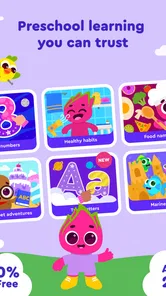
As soon as you open the app, you’re greeted with a colorful and intuitive interface. This makes navigation a breeze for kids, even without much assistance. The games are categorized into different learning segments such as math, science, and language arts. My personal favorite is the "Animal World" section, where kids can learn about different animals and their habitats. It's like having a mini zoo in your pocket!
The developers have clearly put a lot of thought into each game, ensuring they’re not only educational but also entertaining. The animations are vibrant and lively, capturing children's attention right away. Plus, the app is regularly updated with new content, so there's always something fresh for your kids to explore.
Safe and Kid-Friendly
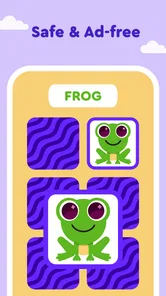
One of the things I appreciate the most about Keiki is its commitment to creating a safe environment for children. The app is free of ads, which means kids won’t accidentally click on something they shouldn’t. Plus, there’s a parental control feature that lets you set usage limits and monitor what your child is learning.
Keiki also provides a comprehensive report on your child’s progress. This feature is a real gem as it gives you insights into what your child is excelling at and what areas might need a bit more focus. It’s like having a teacher’s feedback right at your fingertips.
Final Thoughts
All in all, Keiki Learning games for Kids offers a fantastic blend of education and entertainment. It’s an app that not only keeps kids engaged but also supports their development in a fun and interactive way. If you’re looking for an educational tool that your kids will love, I highly recommend giving Keiki a try. Just be prepared for them to ask, "Can I play on Keiki now?" every time they see your phone!
When variety helps—and when it gets in the way
The broad mix is most useful for a child who enjoys switching between kinds of play and is ready to sample early number and letter activities. If you are choosing something for a four- or five-year-old, I’d use the age range as a starting point rather than assume every task will be equally easy or interesting. Some children want a quick challenge; others need time to repeat the same basic idea without distractions. Let their response guide how long you stay and what you open next.
There is also a practical difference between a game that occupies a child and one that supports a learning routine. Before starting, decide what you want the session to be for: a little letter recognition, a few counting attempts, or simply exploring together. That small intention makes it easier to notice whether the activity is doing useful work. If the child is only tapping through screens, pause and ask them to name a letter, count something nearby, or describe an animal they encountered.
A low-pressure way to build a routine
I’d keep the device setup adult-led, especially where purchases are concerned, and make the stopping point clear before the child begins. A predictable routine—one activity, a quick conversation about it, then the device away—can prevent the common tug-of-war over “one more.” The game can be a convenient option during a quiet moment at home or while waiting, but it works best when the adult remains part of the learning loop rather than treating the screen as a lesson that runs itself.
My main reservation is that a lively, varied app can encourage children to chase the next activity instead of lingering on a skill. That is not a reason to avoid it; it is a reason to guide the session. Parents who want a tightly sequenced curriculum, a specific school-aligned topic, or detailed evidence of progress should compare it with a focused learning resource and review the available activities themselves. For casual, shared practice, though, Keiki can make a useful change of pace from flashcards or passive videos, especially when a child is eager to tap, answer, and have another go.
Choosing a session that fits the child
I would not make the first session a test of how long a child can stay engaged. Instead, I’d watch for small signs of a good match: they understand the prompt after a little explanation, make a choice without being rushed, and can tell me something about what they just did. If those pieces are missing, that does not mean the child has failed; the activity may be too advanced, too easy, or simply not suited to their mood that day. Closing the game and trying again another time is a perfectly reasonable outcome.
For a child who asks to use a phone during a waiting room visit, I’d decide in advance whether the goal is a quick turn or a longer shared activity. A short turn can make waiting less tedious, while sitting beside the child lets me ask them to count or name something in the room after a game. That gives the screen activity a natural stopping point and keeps the child connected to their surroundings. I would avoid introducing it when I need the child to settle instantly, since excitement about choosing activities can have the opposite effect.
Making the learning carry beyond the screen
One useful trade-off with a game built around tapping is that it makes responding easy, but a correct tap does not always show whether a child can use the idea elsewhere. I’d occasionally follow a screen task with a small real-world prompt: count the spoons at the table, look for a letter on a book cover, or explain what made an answer fit. These are not extra lessons that need preparation; they are quick ways to see whether the child is thinking about the skill rather than only the game’s next step.
This approach also helps parents decide whether to repeat an activity or move on. If the child can describe the idea and apply it to a familiar object, a change of activity may keep the session lively. If they are guessing, I’d stay nearby and simplify the conversation rather than turning the moment into a correction session. The aim is to make curiosity feel safe, not to use a preschool game as a measure of achievement.
Who will get the most from it
I see the best fit as a preschooler who enjoys colorful, interactive play and is beginning to explore letters, numbers, and other early ideas with an adult close by. It can also suit a caregiver who wants a ready-to-open activity for a quiet stretch at home and is willing to guide the choice, set a boundary, and talk about what happened. The game’s free starting point makes it easy to consider, though I’d still look carefully at purchase options before letting a child navigate independently.
It is less suitable for families who want a fully hands-off learning tool, a strict lesson sequence, or one narrowly defined skill to practise every day. A paper activity, a library book, or a focused subject app may be better when a child needs slower repetition or a specific teaching approach. If a child becomes unsettled by screen transitions or has trouble stopping after a game, an offline activity may also be kinder. The point is not to fit every child to the app, but to use it only when its style suits the moment.
What I would check before handing over the device
Because the game includes in-app purchases, I’d handle setup and any purchase decisions myself rather than treating the free download as a promise that every option is free. I’d also look through the activities with the child before a busy moment, so we already know where to start and what a natural stopping point might be. That small bit of preparation reduces aimless browsing and makes it less likely that the child will ask for a new activity just as I’m trying to end the session.
Parents may also wonder whether it is better than flashcards, videos, or another learning game. I would choose it over passive video when I want the child to make choices and respond, but I would choose flashcards or physical objects when the goal is direct repetition without menus and animation. Against a narrowly focused app, its broader range is appealing for exploration, while a specialist tool is easier to keep aligned with one learning target. None is automatically best; the right choice depends on whether the child needs interaction, focus, or a break from screens.
My verdict on the repeat-play loop
The cycle I’d look for is straightforward: the child chooses an activity, tries an answer, notices the response, and decides whether to have another go. A rewarding moment is not just a bright screen or a request to continue; it is when a child wants to try again because they understand the challenge or are curious about what comes next. If that curiosity turns into hurried tapping, I’d reset the session by pausing, naming the skill, and either returning to one task or putting the device away.
That is why my recommendation is qualified rather than automatic. Keiki can be a lively addition to a preschool routine when an adult helps shape the session and carries the learning into ordinary conversation. It is not my first choice for independent screen time, a carefully sequenced curriculum, or a child who needs a calm, predictable activity. Used in short, purposeful turns, though, it offers a practical way to make early practice feel playful without pretending that a game can replace the attention and everyday learning a child gets from people around them.
Keiki Learning games for Kids Frequently Asked Questions
Can I try Keiki Learning Games for Kids before paying?
Keiki Learning Games for Kids is free to download, so you can install it and explore the experience before deciding whether to make any purchases. The game also offers in-app purchases, and available items range from $3.99 to $69.99. Review purchase choices yourself before giving a child access to the device, so any spending is deliberate.
What kind of activities does Keiki Learning Games for Kids include?
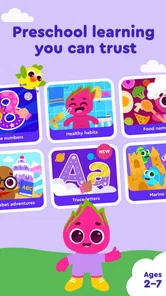
The game is aimed at early learning, with a store summary highlighting math games, ABC activities, and kindergarten learning. That makes it a potential fit for families looking for playful ways to introduce basic academic topics. Children can engage with learning through games rather than relying only on traditional exercises, while parents can consider whether these themes match their child’s interests.
What devices and operating systems can run Keiki Learning Games for Kids?
Keiki Learning Games for Kids is a mobile educational game for children. Before downloading, check that your device meets the app’s minimum operating-system requirement; it supports Android 6.0 and later. This can help you avoid installation problems on an older device and gives you a quick compatibility check before you decide whether the app is right for your family.
What is Keiki Learning Games for Kids?
Keiki Learning Games for Kids is an educational app designed to provide children with a fun and interactive learning experience. It covers a variety of subjects such as math, reading, and science through engaging games and activities. The app is suitable for children aged 2 to 8 years and aims to support early childhood education by enhancing cognitive skills and creativity.
Is Keiki Learning Games for Kids safe for my child to use?
Keiki Learning Games for Kids is designed with child safety in mind. The app is intended for children, and its Everyone content rating makes it broadly suitable for family use. Since in-app purchases are available, parents should review purchase options and supervise device access to help prevent unintended spending. You can also decide whether the activities suit your child and guide their use of the game.
Pros
- Interactive learning experience.
- Child-friendly interface.
- Wide range of topics.
- Engaging graphics and sounds.
- Parental control features.
Cons
- In-app purchases required.
- Limited free content.
- Requires internet connection.
- May be too simplistic for older kids.
- Ads can be distracting.