Snap Assist for Chums
- 95.00
- 4.0
- Installs
- 10.00K
- Price
- Free

Screenshots
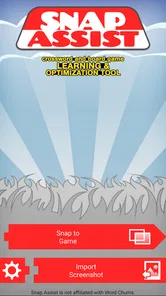
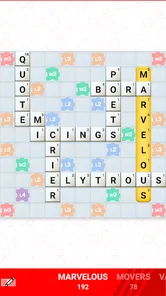
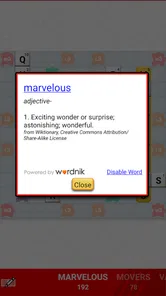
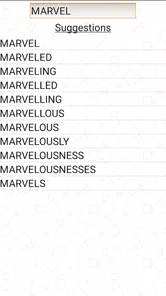
Analysis by Reviewed
If you enjoy Word Chums but regularly get stuck staring at the board, Snap Assist is designed for that exact moment. I approached it as a practical companion rather than a separate word game: its purpose is to help you study a position, find useful possibilities, and make more informed choices in Word Chums. That makes the experience quite different from opening another crossword app for a quick puzzle.
The app comes from Firecracker Software LLC and is listed as a free word game for Everyone. Its store summary describes it as a crossword learning and optimization tool for Word Chums, while the shorter description calls it “Snap Assist.” In everyday use, I found that the most important question is not whether it can replace Word Chums, but whether you want a focused helper beside the game you already play.
That distinction matters. If you want a self-contained crossword campaign, a large dictionary exercise, or a relaxing word puzzle with no connection to another game, this is probably not the most natural choice. If your goal is to understand a difficult board, improve your decisions, or turn a frustrating turn into a learning opportunity, the concept is much more appealing.
What to expect before your first move
The first-time experience is easier when you know what kind of tool you are opening. Snap Assist is not presented as a replacement board on which you spend hours building a personal game. It is better understood as a support layer for Word Chums. You bring the position you are working on, use the app to examine it, and then decide how much of its guidance you want to apply.
That workflow gives the app a practical strength: it focuses your attention on a real situation instead of sending you through unrelated practice rounds. When I use a helper in this category, I want an answer to a specific problem. Is there a stronger placement? Am I overlooking a short word? Is a tempting move actually wasting a valuable letter? Snap Assist is aimed at those questions.
There is also a useful difference between using it to solve a turn and using it to learn. A quick answer may help you finish a difficult position, but the more valuable habit is to compare the suggested possibilities with the move you first considered. Look at the letters used, the spaces opened for the opponent, and the premium squares affected by the placement. That turns the tool from an answer machine into a way of noticing patterns.
Because it belongs to the word-game category, the interface and language are likely to make the most sense to players who already understand crossword-style boards. A complete beginner can still try it, but the benefit increases once you know why a move is attractive. Without that background, a recommendation can feel arbitrary. With it, the same recommendation becomes a small lesson in board control and word selection.
More From Our News Desk

 Gmail
GmailGmail in a Busy Inbox: Who Benefits Most?
From first account to crowded workday, Gmail earns its place through dependable search and flexible sorting—but its best fit depends on how much inbox maintenance you can tolerate.

 Prime Video
Switching to Prime Video: What Changes in Your Viewing Routine
Prime Video can make a compelling second home for streaming, but switching means learning a different catalog, rental layer, and route from browsing to playback.

 Universal TV Remote Control
Universal TV Remote Control Works Best as a Reliable Backup
A phone remote earns its place through quick setup and reliable habits. Here is how to get more from Universal TV Remote Control—and where its limits show.

 Weather - By Xiaomi
Weather by Xiaomi Review: Clear at a Glance, Less Clear Up Close
Xiaomi’s weather app makes everyday forecasts quick to scan, but its calm surface can leave useful details and recovery paths harder to find than they should be.

 X
XX Under Pressure: Can It Recover When Posting Goes Wrong?
A resilience-focused review of X, examining setup, mistaken posts, interruptions, weak connections, and the gaps that matter when recovery needs to be dependable.

 Clash of Clans
Clash of Clans Is Won Between the Battles
Its raids are quick; its community is a long-term project of coordination, teaching, rivalry, and shared responsibility—with all the friction that entails.
Latest News



The app has been available since June 17, 2016, and its current version is 5.5.8. It supports devices running Android 7.0 or later. Those details make it accessible to people using older compatible phones, although I would still install it on the device where I normally play Word Chums. Switching repeatedly between unrelated devices or screens would make the process slower than it needs to be.
Its average rating is 4.0 from over three hundred ratings, with more than ninety written reviews, and it has passed ten thousand installs. I read that as a sign of a focused audience rather than a mass-market puzzle app. The numbers do not make it a universal recommendation, but they do fit the impression of a specialized utility for players who know what problem they want to solve.
Who will get the most from it
I would recommend trying it if you play Word Chums regularly and feel that your results depend too much on luck or on spotting one obvious word. It can be especially useful for players who are trying to move from casual play to more deliberate play. You do not need to memorize a dictionary to benefit; you need curiosity about why one legal move is better than another.
It is less suitable for someone who wants every turn to remain completely unaided. Some players enjoy the uncertainty of searching through their own rack, and an optimization tool can remove part of that tension. It is also not the right first choice if you are looking for a broad language-learning course, because its purpose is tied to Word Chums positions rather than general vocabulary lessons.
Setting it up without making the process harder
Since the app is free to install, the initial decision is simple: download it on a compatible Android device and keep Word Chums available as the source of the position you want to examine. The store lists in-app purchases ranging from $3.99 to $49.99 per item, so I would pay attention to any purchase screen and decide in advance whether you only want to explore the free experience.
My advice for a first session is to start with a board that genuinely bothers you, not a random position. Choose a turn where you can see one possible word but are unsure whether it is wise. That gives the tool a clear job and gives you a meaningful way to judge the result. If you begin with an easy move, you may learn very little about how the app fits into your routine.
Before opening the helper, pause in Word Chums and note the essentials of the position. Look at your available letters, the open lanes, existing word endings, and any premium squares that could influence the next placement. You do not need to turn this into formal paperwork. A few seconds of observation prevents you from accepting a suggestion without understanding the board around it.
The most important setup habit is to keep the two apps conceptually separate. Word Chums remains the place where the match happens. Snap Assist is the place where you investigate possibilities. If you treat the helper as though it were another complete game, you may expect features or pacing that do not fit its focused role. Keeping that boundary clear makes the experience feel more controlled.
For a first-time user, I would also avoid beginning with the hardest position from a competitive match. Use a casual turn or an older board if possible, then compare your own idea with what the assistant shows. This reduces pressure and lets you learn the rhythm: inspect the board, capture or enter the relevant position in the way the app expects, review the possibilities, and return to Word Chums to make your decision.
That rhythm is where the real convenience lies. A helper is only useful if it shortens the distance between “I am stuck” and “I understand my options.” If setup takes so much effort that you forget the original position, the benefit disappears. I therefore recommend using it for one turn at a time rather than trying to process an entire match in a single sitting.
Making the first successful move meaningful
Your first success should not simply be placing the highest-looking word. Instead, choose a move and ask what made it strong. Did it use awkward letters? Did it create a useful extension? Did it avoid giving the opponent an easy premium-square opportunity? Did it preserve a balanced group of letters for your next turn? These questions help you extract value even when the app presents several attractive options.
A realistic example is a weekday evening match that has stalled. I might have a rack with one obvious short word and a few letters that seem difficult to combine. Rather than immediately playing the short word, I would use Snap Assist to inspect the position, then compare the suggestions with the board’s open lanes. If the best-looking option opens a powerful route for the opponent, I may choose a slightly less impressive move that keeps the board safer. The tool informs the decision; it does not have to make the decision for me.
That is one of the app’s less obvious strengths. Optimization is not always the same as choosing the longest word or the move with the biggest immediate score. A recommendation becomes more useful when you examine its consequences. In a close match, protecting a valuable square or avoiding an easy hook can matter more than a small gain on the current turn.
Another helpful workflow is to use the app after the turn rather than before it. Make your own move first, then review the position when the match advances. This approach preserves the challenge while showing you where your thinking differed from the stronger alternatives. Over several games, you may notice recurring mistakes: spending flexible letters too early, ignoring short extensions, or creating open lines without compensation.
I also like the idea of keeping a tiny mental record of discoveries. You do not need a notebook full of word lists. Remember one strategic lesson from each session, such as “check the side openings before using the premium square” or “do not assume a longer word is automatically better.” Those observations are more transferable than memorizing a single unusual word that may never appear again.
For a first meaningful result, give yourself a modest target: understand one recommendation and use that understanding to make a deliberate move. If the turn improves, that is a bonus. The lasting benefit is learning how the board shaped the choice.
Where new users can become confused
The biggest source of confusion is likely to be the relationship between the helper and Word Chums. Snap Assist is not something I would open expecting a normal standalone crossword session. Its value depends on the position you are trying to examine, so a user who has never played Word Chums may not immediately understand what to feed into the workflow or how to interpret the result.
Another common mistake is treating every suggestion as an instruction. A tool can identify a strong possibility, but the player still has to consider the wider board and the opponent’s likely response. If two moves appear close, the safer one may be preferable in a defensive match, while the riskier one may be appropriate if you need to catch up. The right choice depends on the situation, not just the first result shown.
It is also easy to confuse vocabulary discovery with vocabulary mastery. Seeing an unfamiliar word in a recommendation does not automatically mean you will remember it. If learning is your goal, pause and inspect how the word fits the existing letters and board spaces. Try to recognize the pattern later instead of simply copying it once.
There is a practical cost to constant switching. Moving between Word Chums and an assistant can interrupt the flow of a friendly match, especially when you are playing quickly. I would not use Snap Assist on every turn. Reserve it for positions where you are genuinely uncertain, where the board has unusual openings, or where you want to study a mistake. Selective use keeps the game enjoyable and makes each consultation more useful.
Purchases are another point worth handling carefully. The app is free, but individual in-app items are listed between $3.99 and $49.99. I would not assume that paying automatically improves your word-game skill. First decide whether the basic workflow fits your habits, then consider whether any optional purchase solves a problem you actually have. If you prefer a completely cost-free experience, stop at the free portion and avoid treating upgrades as necessary for casual play.
The age rating is Everyone, which makes the app broadly approachable from a content perspective. That does not mean every player will enjoy the helper. A child or a new word-game player may need an explanation of the surrounding Word Chums rules before the suggestions become meaningful, while an experienced player may want more control over how much assistance is used.
Using it as a learning tool instead of a shortcut
The strongest way to build skill is to make a prediction before consulting the app. Say to yourself which move you expect to be best and why. Then compare that prediction with the available possibilities. This creates a feedback loop: you are testing your judgment rather than outsourcing it.
Pay special attention to differences between your choice and the suggested choice. If the app favors a shorter word, ask whether it preserves better letters. If it favors a placement that scores less immediately, check whether it controls a dangerous opening. If it chooses a move using an awkward letter, consider whether that improves your next rack. These comparisons reveal strategy that a simple list of words cannot teach.
A second advanced habit is to study the board after your opponent responds. Sometimes a move looks excellent in isolation but changes the shape of the match. By reviewing the next position, you can see whether the earlier decision created useful flexibility or handed over an easy opportunity. This is where the app can become more than a turn-by-turn crutch: it can help you understand cause and effect across several turns.
There is also a trade-off between speed and reflection. If you are playing a timed or fast-moving match, a detailed review may be impractical. In that case, use the assistant only for unusual positions and rely on your own instincts for familiar patterns. If you are playing casually, spend more time comparing alternatives. The best routine is the one that supports your reason for playing rather than turning every match into homework.
Compared with a normal crossword app, Snap Assist is narrower but more directly connected to a live board situation. A traditional crossword game is better when you want a self-contained challenge with no need to transfer positions or consult another screen. Compared with a general word finder, this app’s appeal is its focus on Word Chums rather than on random anagrams. That focus is useful if it matches your routine, but limiting if you want broad word-game coverage.
Who should skip it and what to try instead
I would skip Snap Assist if your main goal is independent solving and you know that outside suggestions will make the game less satisfying. I would also look elsewhere if you want structured lessons, pronunciation practice, a large collection of standalone puzzles, or a social word game that does not depend on Word Chums. Those needs call for a different type of app.
It may also be a poor fit for players who rarely play Word Chums. A specialized companion has little value if there is no regular board to analyze. In that situation, a conventional crossword or anagram game will give you more activity immediately, without requiring a separate game-and-helper workflow.
On the other hand, players who already have several Word Chums matches in progress may find the focused design appealing. You can use it as a study aid after a surprising loss, a way to break through a stubborn turn, or a private check on whether your instincts are improving. The key is to decide whether you want assistance, education, or both.
My recommendation after using the workflow
I see Snap Assist for Chums as a specialized tool with a clear audience. It is not trying to be the most complete word game on your phone. Its value comes from helping you examine Word Chums positions and think more carefully about the choices available. That makes it useful for curious players, but unnecessary for people who want their matches to remain entirely unaided.
The best first session is simple: install it on a compatible Android device, open a difficult Word Chums position, make your own prediction, and then use the assistant to compare options. Do not rush to copy the first appealing word. Study why a move fits the board, what it leaves behind, and how it might shape the next turn.
My honest recommendation is to try the free experience only if Word Chums is already part of your regular routine. Use it selectively, especially on turns where your reasoning feels uncertain. If it helps you understand board openings, letter balance, and defensive choices, it earns a place in your toolkit. If it merely removes the fun of searching for yourself, return to normal play.
With a 4.0 average and more than ten thousand installs, it has found a modest but recognizable audience, and I can understand why. The app solves a specific problem rather than pretending to replace the whole word-game experience. For a first-time user, the reassuring path is to treat it as a learning companion: one position, one comparison, and one practical lesson at a time. Its real strength is not simply finding a move, but helping you understand why that move may matter.
Snap Assist for Chums Frequently Asked Questions
What kind of game is Snap Assist for Chums?
Snap Assist for Chums is a word game described as a crossword learning and optimization tool for Word Chums. It is intended for players looking for assistance with crossword play and word choices, rather than a general photo or social-sharing app. It is developed by Firecracker Software LLC and is available to download for free, with optional in-app purchases.
What is Snap Assist for Chums, and what can I use it for?
Snap Assist for Chums is designed to help users capture, organize, and share snapshots or activity updates with friends, depending on the features available in the current version. Its main appeal is the simple, social-focused experience, making it useful for keeping a group connected without relying on complicated menus. Before downloading, check the app’s store description to confirm the exact tools, supported devices, and intended audience in your region.
Is Snap Assist for Chums free to download and use?
The application may be available as a free download, but users should review the store listing carefully for possible in-app purchases, advertising, subscriptions, or premium functions. Some features may be limited unless you upgrade, while others could require an account or access to specific services. Pricing and availability can change, so confirm the current details on Google Play or the App Store before installing.
Does Snap Assist for Chums require an account or access to personal information?
Depending on how its social and sharing features work, Snap Assist for Chums may request permission to use the camera, photos, storage, notifications, contacts, or internet connection. An account might also be needed to save activity or connect with friends. I recommend reviewing every permission request during setup and checking the privacy policy so you understand what information is collected, why it is needed, and how it is handled.
Can I use Snap Assist for Chums without an internet connection?
Some basic functions may work offline, such as opening previously stored content or preparing a snapshot, but social features normally depend on an active internet connection. Sharing, synchronization, invitations, online profiles, and updates may not function correctly without Wi-Fi or mobile data. If reliable offline access is important to you, verify the app’s current requirements and test its behavior before depending on it away from a connection.
Pros
- Quickly suggests replies that match the conversation’s tone.
- Useful for users who struggle to start or continue chats.
- Simple interface makes the main features easy to access.
- Can help keep conversations active during awkward pauses.
- Convenient for casual messaging with friends and acquaintances.
Cons
- Suggested replies may sound generic or unlike your usual writing style.
- Requires access to message content to provide relevant suggestions.
- Privacy details should be reviewed before connecting messaging accounts.
- Less useful for highly personal
- complex
- or emotional conversations.
- Frequent suggestions may make chats feel less natural over time.